Recommendations
On this page you will learn about managing Recommendations in Kelvin UI.
Recommendations are generated from Kelvin SmartApp™ or from third party sources using the Kelvin API endpoint and will either be automatically accepted and implemented or wait for the Operations Engineers decision on the actions to take.
View Recommendations
Recommendations can be accessed from many locations.
You can see how to view Recommendations from the different areas of the Kelvin UI
Assets Menu
There are two main locations that you can view Recommendations for Assets.
Asset-centric Table
If you customize the Asset-centric table columns, you can add a filtered Recommendations column.
The default Asset-centric table does not show Recommendations in the coluumn.
You can read the documentation on how to show Recommendation column here.
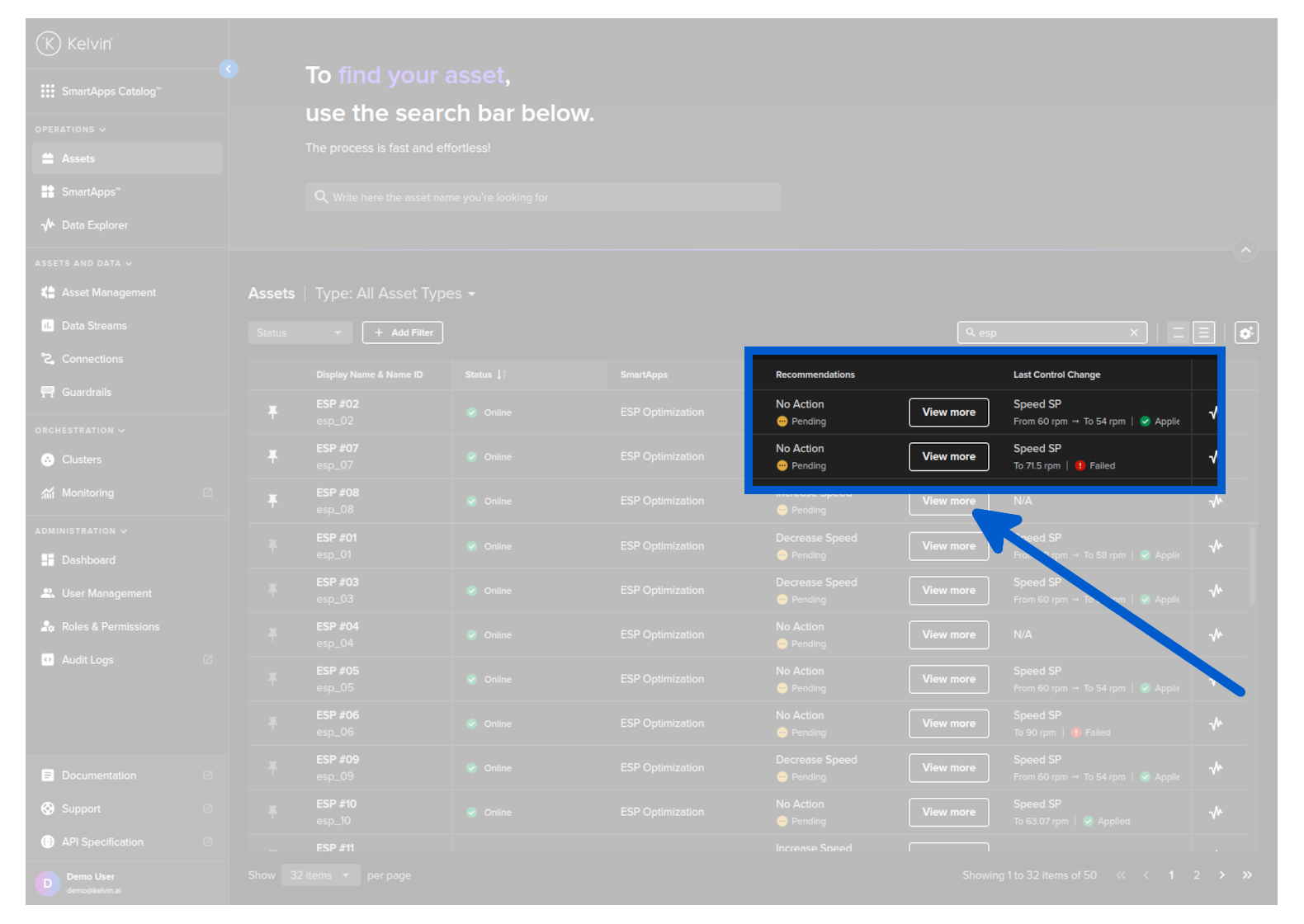
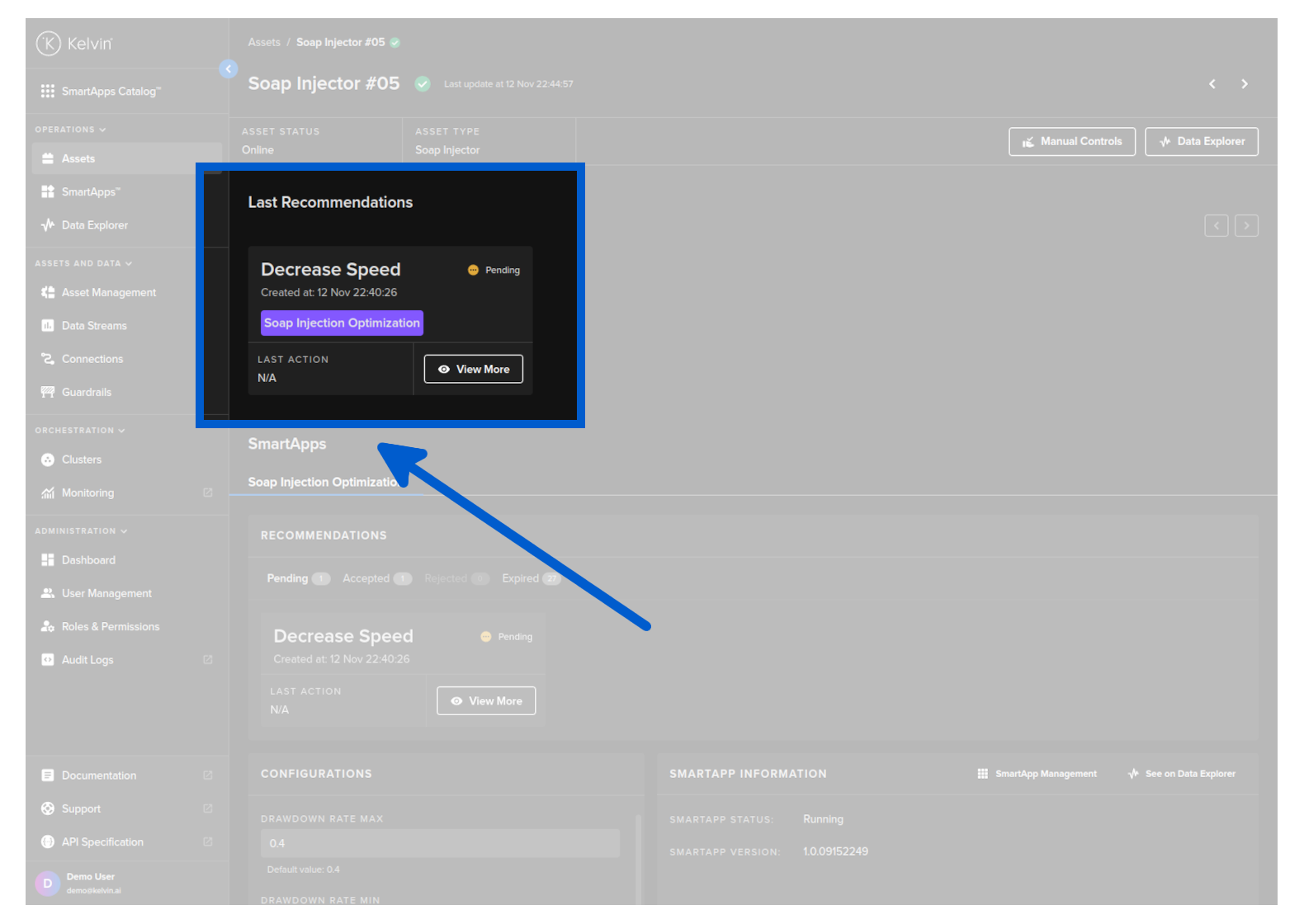
Asset Details Page
When you select an Asset, in the Asset Details page you can see the Last Recommendation from any Kelvin SmartApp™ that is processing the selected Asset. You can read more about this feature here.
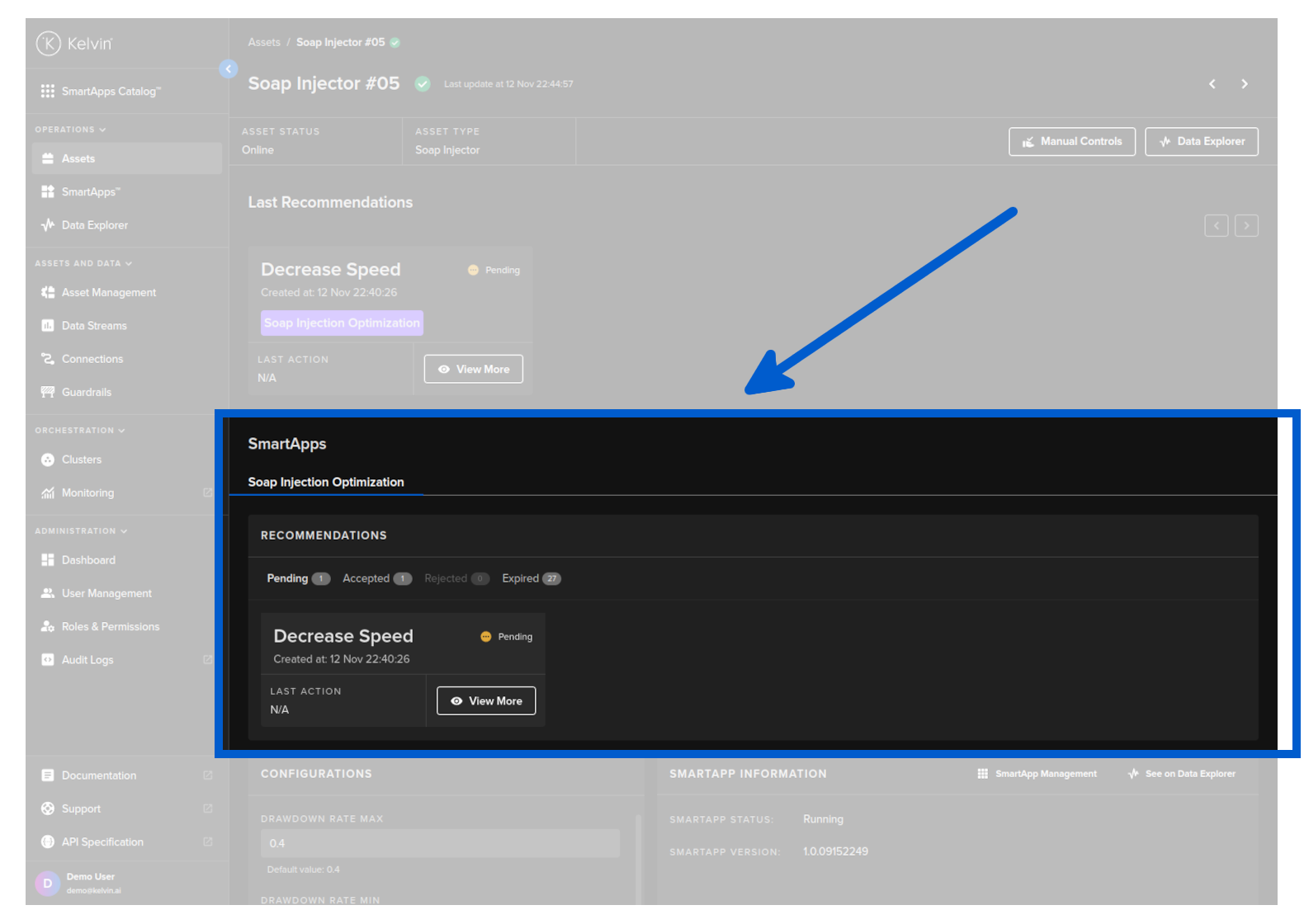
Or you can view and filter by status (Pending, Accepted, Rejected and Expired) all the Recommendations for the selected Kelvin SmartApp™. You can read more about this feature here.
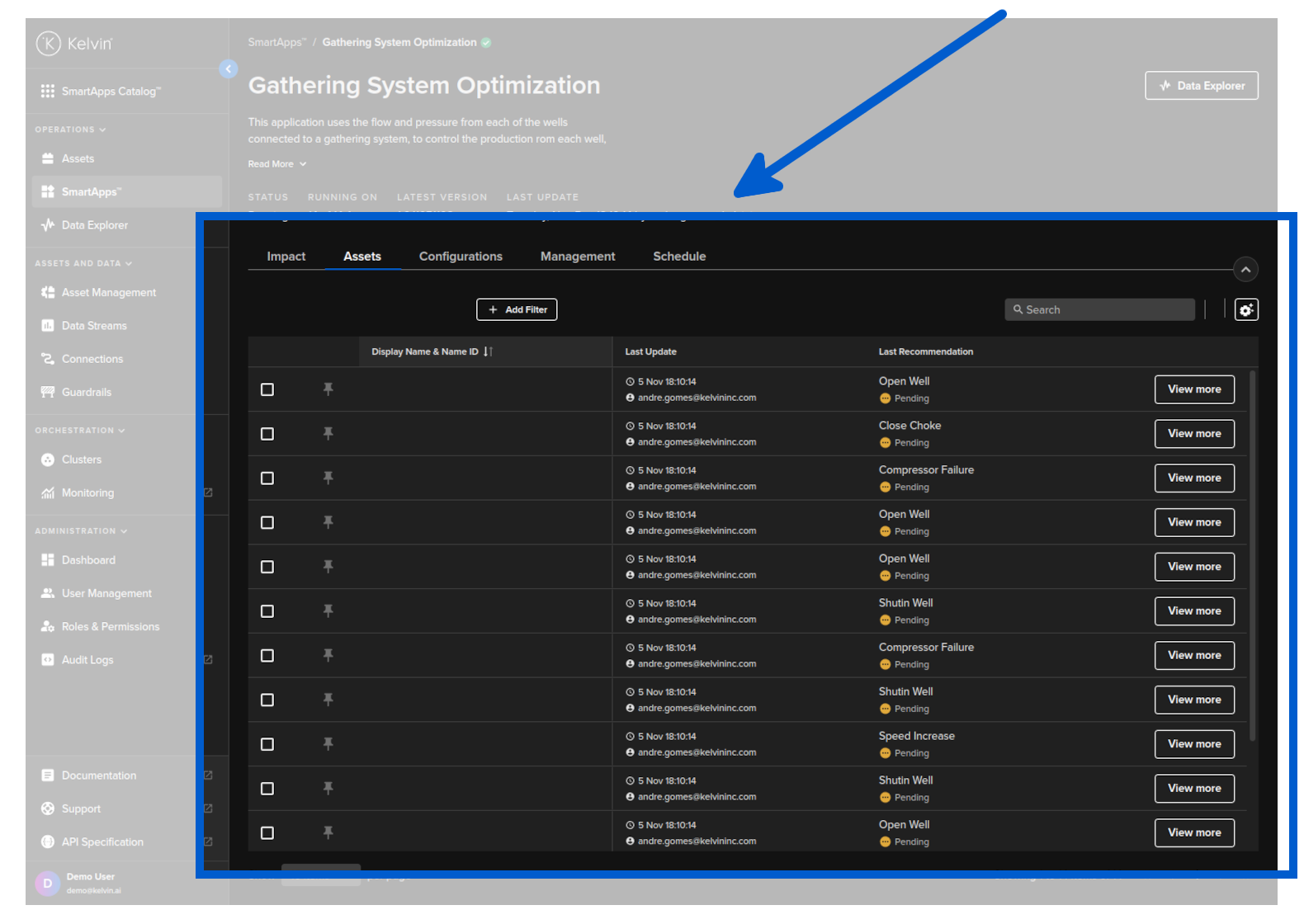
SmartApp™ Menu
In the SmartApps™ menu you can see the Recommendations in the Assets-centrics table under the Assets tab.
The default Asset-centric table does not show Recommendations in the coluumn.
You can read the documentation on how to show Recommendation column here.
Data Explorer Menu
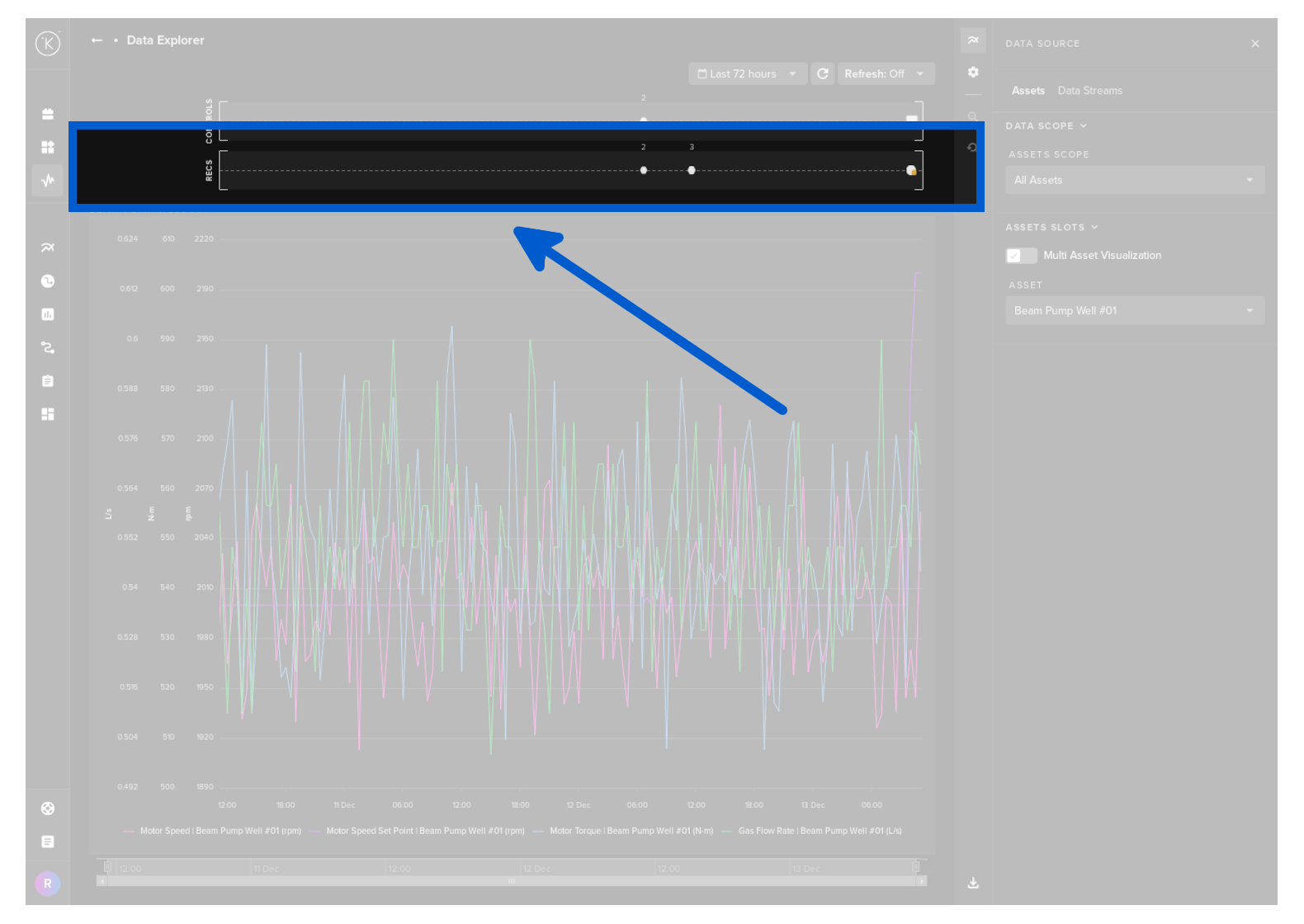
Every Recommendation performed is shown in the activity lane in the Data Explorer. This allows you to quickly and visually see the effects of individual Recommendation on your Data Streams.
If the X-axis scale is too small to show individual Recommendation times, then they will be grouped together and the icon will be a white circle with a number above indicating how many Recommendations are registered at that point in time.
Click on the white circle and the graph will automatically zoom to that location in time and show the individual Recommendations like below.
Info Popup
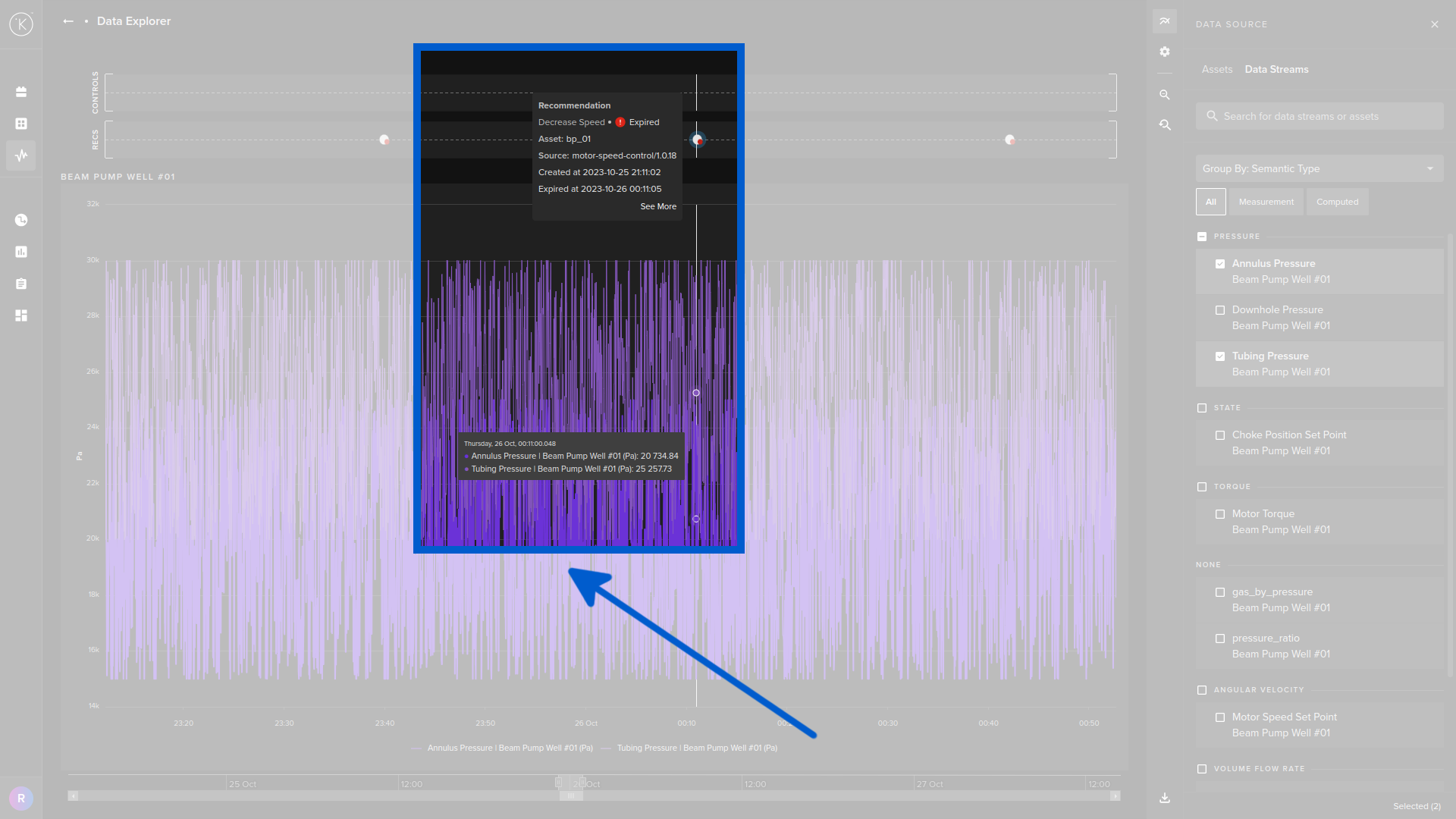
If you put your mouse over any Recommendation point in the time frame, a popup will display detailed information about the that Recommendation.
Hide Activity Lane
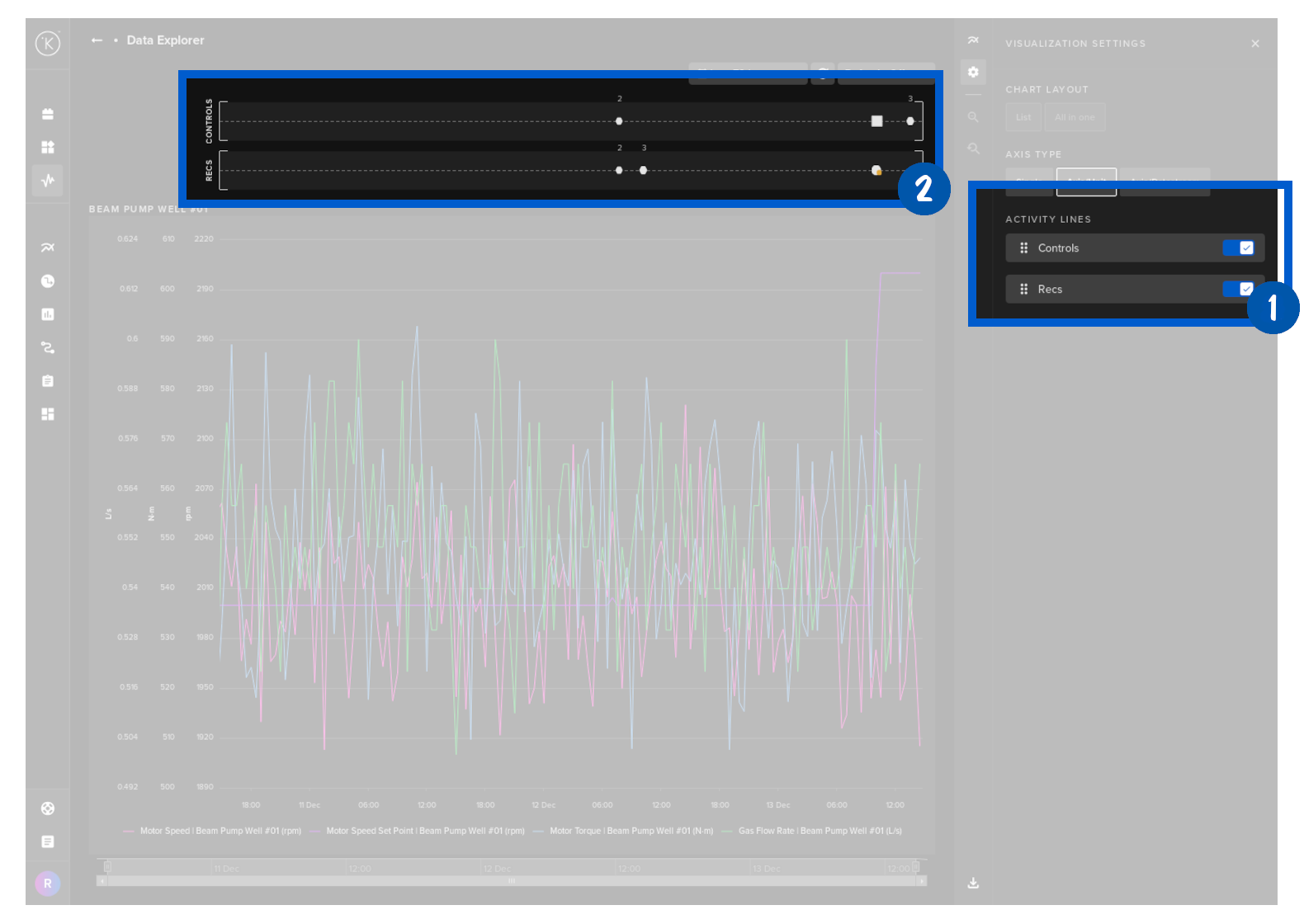
Recommendation activity lanes can be turned on or off from the visualization settings in the right hand sidebar.
Action a Recommendation
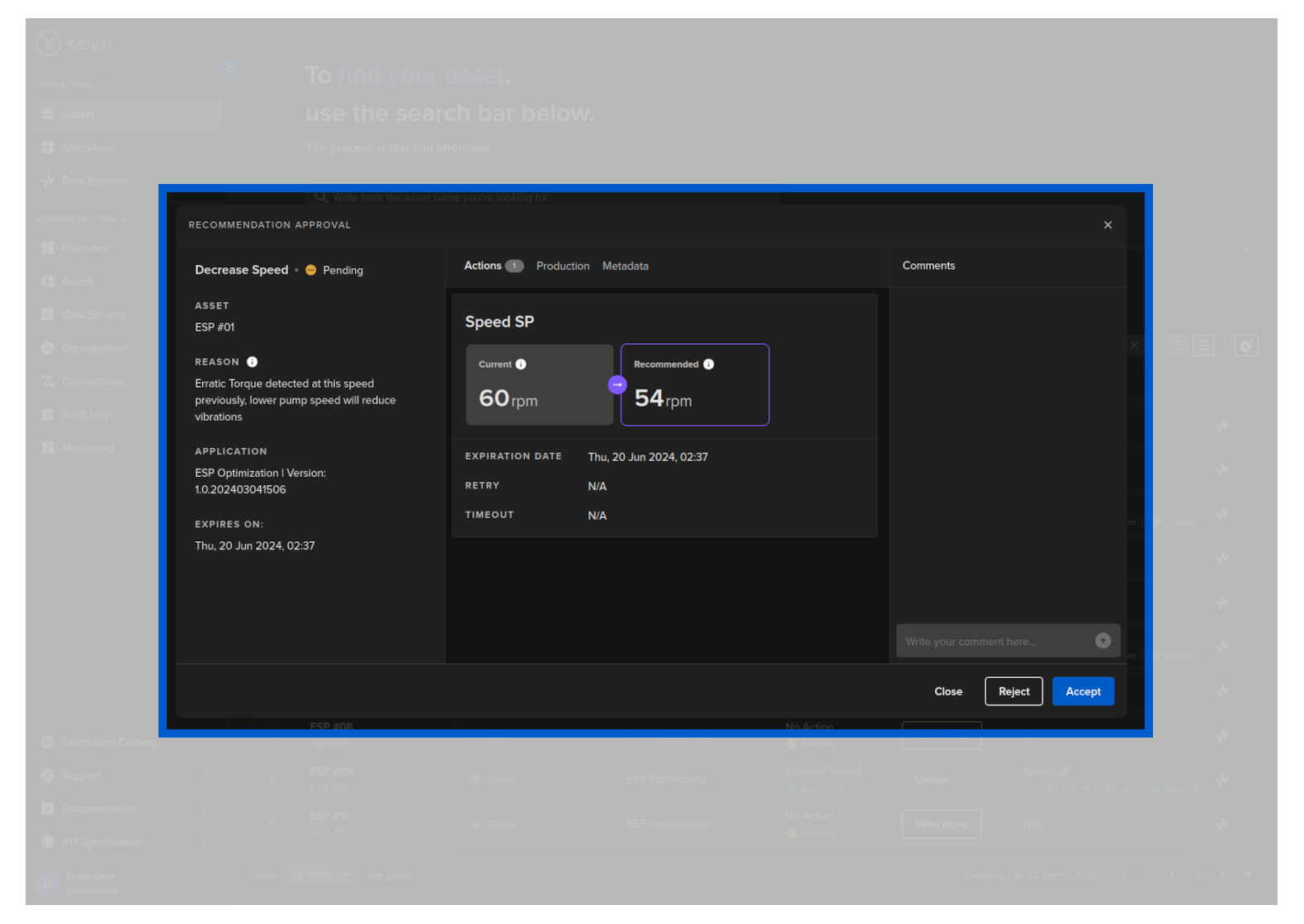
When you click on View More button (or See More in the Data Explorer popup) you will see the Recommendation popup where you can see the full details of the Recommendation.
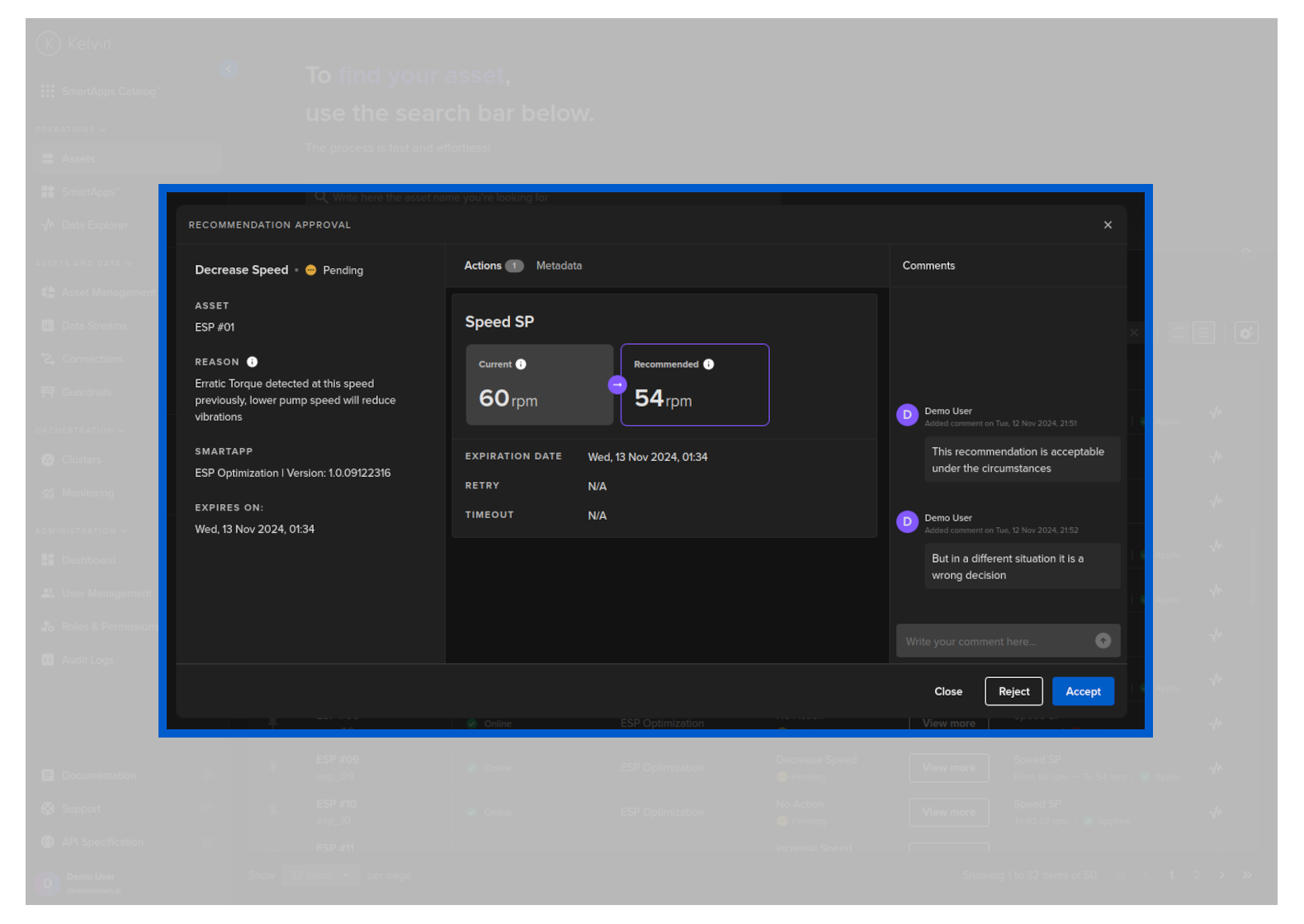
In the Recommendations popup you can see the full details of the Recommendation on the left hand side.
This will include informtion about;
- Recommendation Tag (In this example this is
Decrease Speed) - Current Status (In this example this is
Pending) - Assets that will be affect if Recommendation is accepted (In this example this is
ESP #01) - Reason for the Recommendation
- When the Recommendation will expire and automatically be rejected (In this example this is
Thu, 20 Jun 2024, 02:37)
Clicking on this tab you will see a full list of Recommended actions that will be taken.
This example gives only one action, but this could be a list of multiple actions to be implemented if the Recommendation accepted.
This will also give you information about the current setting when the Recommendation was created as well as the Recommended new setting.
The actions are not just limited to Control Changes but can also be one of the following;
- Control Changes
- Send Emails and Alerts
- Create Alarms (future feature)
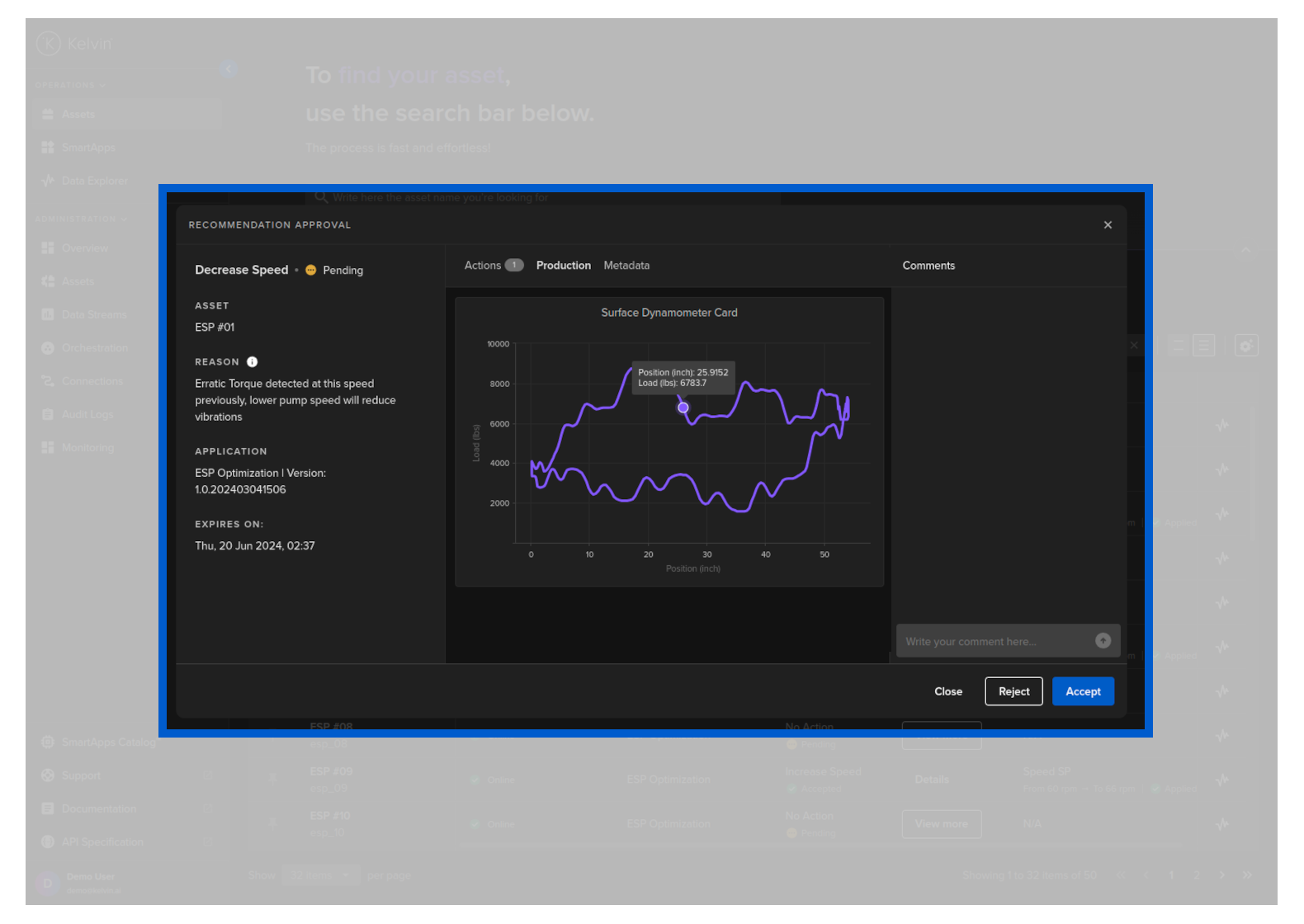
If the Recommendation comes with a Dynacard then the Production tab will also be shown like this;
Clicking on the Production tab you can view the data in a table.
By hovering your mouse over the line you can see the actual data.
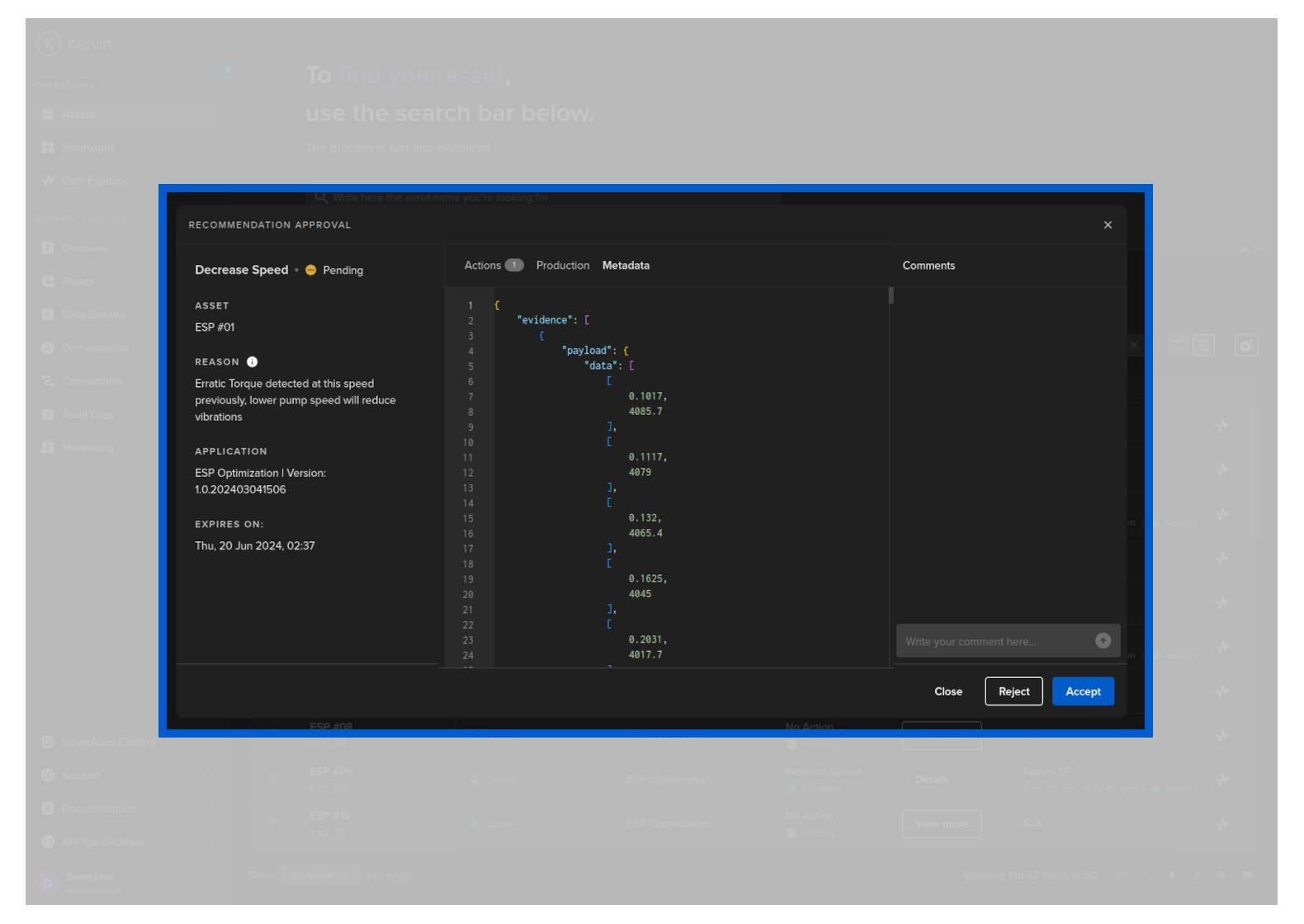
This is any further information the Deveopers want to include into the Recommendation.
If the Production tab is visible, this means there is a Dynacard attached to the Recommendation.
You can see the raw data for the Dynacard in the evidence key under the Metadata tab.
You can add an unlimited amount of comments at any time to this Recommendation.
You do not need to Accept or Reject a Recommendation to add a comment.
Comments are be very useful for;
- Sharing information between Operations or shifts about certain Recommendations
- As feedback to the Developer. The Developers can use the comments to determine how to improve the Kelvin SmartApps™ that produce the Recommendations.