How To
Create a Kelvin App
$ kelvin app create
[kelvin.sdk][2023-10-19 18:39:54][I] Refreshing metadata..
Please provide a name for the application: event-detection
After providing an application name (i.e.: event-detection):
[kelvin.sdk][2023-10-19 18:43:36][I] Creating new application "event-detection"
[kelvin.sdk][2023-10-19 18:43:36][I] Retrieving the latest schema version
[kelvin.sdk][2023-10-19 18:43:39][R] Successfully created new application: "event-detection".
This will automatically create a Kelvin App bootstrap within a directory named as event-detection. It contains 5 different files (app.yaml, main.py, requirements.txt, Dockerfile and .dockerignore) which are gonna be explained in the next section.
Folder Structure
You can now open the folder in your favorite IDE or editor and start to modify the files to create your Kelvin App.
$ cd event-detection
$ ls -la
-rw-rw-r-- 1 ubuntu ubuntu  361 Oct  2 21:57 .dockerignore
-rw-rw-r-- 1 ubuntu ubuntu  133 Oct  2 21:57 Dockerfile
-rw-rw-r-- 1 ubuntu ubuntu  436 Oct  2 21:57 app.yaml
-rw-rw-r-- 1 ubuntu ubuntu  610 Oct  2 21:57 main.py
-rw-rw-r-- 1 ubuntu ubuntu   17 Oct  2 21:57 requirements.txt
Below is a brief description of each file.
The app.yaml is the main configuration file that holds both the application definition as well as the deployment/runtime configuration. It is composed by the following sections:
-
The
spec_versionsection is automatically injected and specifies the application JSON Schema (latest) version which both defines and validates theapp.yamlstructure.spec_version: 4.11.0 -
The
infosection holds the application's basic information required to make itself uploadable to Kelvin's App Registry.info: name: event-detection title: Event Detection description: Monitors if a motor is overheating. If so, it will send a Control Change to reduce the Motor Speed. version: 1.0.0The
nameis the application's unique identifier. Thetitleanddescriptionwill appear on the Kelvin UI once the application is uploaded.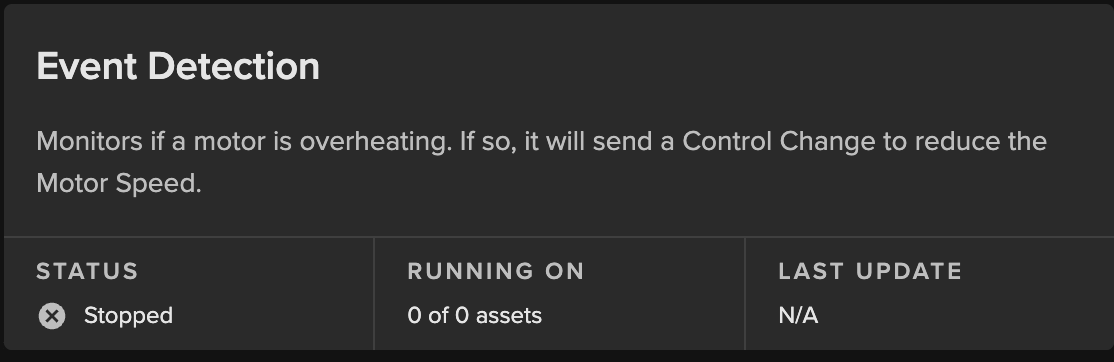
Info
The
versionshould be bumped everytime an application gets an update, and before it gets uploaded to the Application Registry. -
The
app:kelvincan be considered theapp.yaml"main" section. It defines what are the applicationinputsandoutputs, as well as define the application "global"configuration(s) and its (asset)parametersdefinition. We'll go through each of these sections individually with a more detailed analysis later on this guide.app: type: kelvin kelvin: inputs: [] outputs: [] configuration: {} parameters: []Info
All of these are [optional], and can be left empty.
-
The
systemsection is [optional] and can be used to set different system requirements/constraints within the application's running environment. i.e. Resources, Environment Variables, Volumes, Ports, etc:system: resources: {} privileged: Boolean environment_vars: [] ports: [] volumes: [] -
resourcesdefines the reserved (requests) andlimitsthe resources allocated to the application:system: resources: requests: # Reserved cpu: 100m memory: 256Mi limits: # Limits cpu: 200m memory: 512Mi -
environment_varsis used to define Environment Variables available within the application container. i.e.:system: environment_vars: - name: KELVIN_GW_MODE value: SOCKETSInfo
KELVIN_GW_MODEis an Environment Variable that is [required] by Kelvin's platform. Others can optionally be added. -
Mounted
volumesare [optional] and their main purpose is to share and persist data generated by the application or used by it in a specific place. They act like a shared folder between the application and the host. Kelvin supports directory volumes, such as folders or serial ports, persistent, and file/test volumes:system: volumes: # Folder Volume - name: serial-rs232 target: /dev/rs232 # Container path type: host host: source: /dev/ttyS0 # Host path # Persistent Volume - name: extremedb target: /extremedb/data type: persistent # File/Text Volume - name: model-parameters target: /opt/kelvin/data/parameters.bin type: text # Renders data into a file text: base64: true encoding: utf-8 data: |- SGVsbG8gUHJvZHVjdCBHdWlsZCwgZnJvbSB0aGUgRW5naW5lZXJpbmcgR3VpbGQhCg== -
portsis [optional] and used to define network port mappings. i.e.:system: ports: - name: http type: host # Exposed on the host host: port: 80 - name: opcua type: service # Exposed as a service for other containers service: port: 48010 exposed_port: 30120 -
privilegedis [optional] and used to grant extended privileges to an application, allowing it to access any devices on the host, such as a Serial device:system: privileged: true
The main.py is used as the entry point of an application. When it runs, main.py is typically the first script that gets executed, and it usually contains the main logic or orchestrates the flow of the application. However, naming a file "main.py" is just a convention, and it's not mandatory. The name helps developers quickly identify where the primary logic of the application begins.
The following code example will be generated upon kelvin app create:
import asyncio

from kelvin.application import KelvinApp # KelvinApp import


async def main() -> None:
    # Creating instance of Kelvin App Client
    app = KelvinApp()

    # Connect the App Client
    await app.connect()

    while True:
        # Custom Loop
        await asyncio.sleep(1)


if __name__ == "__main__":
    asyncio.run(main())
The requirements.txt file is used to list all the dependencies a Python application needs. It can be used to easily install all the required packages, ensuring the application runs correctly.
The Dockerfile is a script used to define the instructions and configuration for building a Docker image. It specifies the base image, installation of software, file copying, and other setup tasks needed to create a reproducible and isolated environment for running applications in Docker containers.
FROM python:3.10-slim

ENV PYTHONUNBUFFERED=1
WORKDIR /opt/kelvin/app
COPY . /opt/kelvin/app
RUN pip install -r requirements.txt

ENTRYPOINT python main.py
Info
If main.py is not the intended entry point, it also needs to be replaced on the Dockerfile.
Specifies which files and directories should be excluded when building the application Docker image. It helps reducing the build context, resulting in smaller, more efficient Docker image.
Consume
In order to consume streaming data, the inputs section needs to filled upon the app.yaml. That means that the application is only going to be able to consume the specified inputs. i.e.:
app:
  type: kelvin
  kelvin:

    inputs:
        - data_type: number
          name: motor_temperature

        - data_type: string
          name: motor_state
inputs is an array (list) composed by two fields:
- A unique name to identify the input. This will be used in the Python code to reference the input. It must contain only lowercase alphanumeric characters. The characters
.,_and-are allowed to separate words instead of a space BUT can not be at the beginning or end of the name. - An expected data type, which can be:
number,boolean,string.
Now that we've defined the application inputs, there are a few ways to consume them within the Kelvin Python library:
- Filters
- Streams
- Callbacks
These will be explained in the following sections.
Filters
Filters can be used to filter a specific subset of the Kelvin Inputs as a Python Message Queue based upon a filter function.
Info
Different Data filters are available within the filters class, such as input_equals(input: str), resource_equals(resource: KRN) and asset_equals(asset: str). On the following example we're gonna use the most common and expected use case (input_equals(input: str)).
Usage of filters.input_equals(input: str):
import asyncio
from asyncio import Queue # Queue import

from kelvin.application import KelvinApp, filters # filters import
from kelvin.message import Number # Number (Input Type) import


async def main() -> None:
    app = KelvinApp()

    # Create a Filtered Queue with Temperature (Number) Input Messages
    motor_temperature_msg_queue: Queue[Number] = app.filter(filters.input_equals("motor_temperature"))

    await app.connect()

    while True:
        # Wait & Read new Temperature Inputs
        motor_temperature_msg = await motor_temperature_msg_queue.get()

        print("Received Motor Temperature: ", motor_temperature_msg)


if __name__ == "__main__":
    asyncio.run(main())
Streams
Streams are a different way of filtering inputs as a Python Async Generator, also based upon a filter function.
Usage of filters.input_equals(input: str):
import asyncio
from typing import AsyncGenerator # AsyncGenerator import

from kelvin.application import KelvinApp, filters # filters import
from kelvin.message import Number # Number (Input Type) import


async def main() -> None:
    app = KelvinApp()

    # Create a Filtered Stream with Temperature (Number) Input Messages
    motor_temperature_msg_stream: AsyncGenerator[Number, None] = app.stream_filter(filters.input_equals("motor_temperature"))

    await app.connect()

    # Wait & Read new Temperature Inputs
    async for motor_temperature_msg in motor_temperature_msg_stream:
        print("Received Motor Temperature: ", motor_temperature_msg)


if __name__ == "__main__":
    asyncio.run(main())
Callbacks
The callback on_asset_input can be used to read every input flowing into the application:
import asyncio

from kelvin.application import KelvinApp
from kelvin.message.primitives import AssetDataMessage # AssetDataMessage import


# on_asset_input Callback
async def on_asset_input(msg: AssetDataMessage):
    print("Received Data Message: ", msg)

    # Get Asset and Value
    asset = msg.resource.asset
    value = msg.payload

async def main() -> None:
    app = KelvinApp()
    # Set on_asset_input Callback
    app.on_asset_input = on_asset_input

    await app.connect()

    # [Required] Forces the Application to run forever
    while True:
        await asyncio.sleep(1)


if __name__ == "__main__":
    asyncio.run(main())
Produce
Kelvin's Python library allows its users to publish messages to the platform dataflow by using a publish(msg: Message) interface embedded within KelvinApp:
import asyncio

from kelvin.application import KelvinApp


async def main() -> None:
    app = KelvinApp()
    await app.connect()

    await app.publish(...)
publish(msg: Message) can handle different types of messages:
- Data Messages (
Number,BooleanandString) - Control Changes
- Recommendations
We'll go through those examples in the following sections.
Data Messages
In order to publish an output Data Message, the first requirement is to add the intended outputs to the app.yaml as follows:
app:
  type: kelvin
  kelvin:

    outputs:
    - data_type: number
      name: motor_temperature_fahrenheit

    - data_type: boolean
      name: motor_error

    - data_type: string
      name: motor_error_description
Afterwards, the user needs to create and publish each output Data Message according to its data_type:
- Number:
from kelvin.message import Number
from kelvin.message.krn import KRNAssetDataStream

(...)

# Create and Publish a Number
await app.publish(
    Number(resource=KRNAssetDataStream(asset, "motor_temperature_fahrenheit"), payload=97.3)
)
Boolean:
from kelvin.message import Boolean
from kelvin.message.krn import KRNAssetDataStream

(...)

# Create and Publish a Boolean
await app.publish(
    Boolean(resource=KRNAssetDataStream(asset, "motor_error"), payload=True)
)
String:
from kelvin.message import String
from kelvin.message.krn import KRNAssetDataStream

(...)

# Create and Publish a String
await app.publish(
    String(resource=KRNAssetDataStream(asset, "motor_error_description"), payload="Temperature is too high")
)
Control Change Messages
Control Changes are a different kind of output Message, therefore, they require and extra flag to be set under its output definition (control_change: True):
app:
  type: kelvin
  kelvin:

    outputs:
    - data_type: number
      name: motor_speed_set_point
      control_change: true
And this is how to create and publish them:
from datetime import timedelta

from kelvin.application import KelvinApp
from kelvin.message import ControlChange
from kelvin.message.krn import KRNAssetDataStream

(...)

# Create and Publish a Control Change
await app.publish(
    ControlChange(
        resource=KRNAssetDataStream("my-motor-asset", "motor_speed_set_point"),
        payload=1000,
        expiration_date=timedelta(minutes=5)
    )
)
Recommendation Messages
An application can publish a Recommendation Message if the goal is to recommend one or more Control Changes to a given Asset. These will asyncronously reach the cloud and get to a state where they'll be pending user's Approval.
This is how they can be created and published:
from datetime import timedelta

from kelvin.application import KelvinApp
from kelvin.message import ControlChange, Recommendation
from kelvin.message.krn import KRNAssetDataStream, KRNAsset

(...)

# Create a Control Change
control_change = ControlChange(
    resource=KRNAssetDataStream("my-motor-asset", "motor_speed_set_point"),
    payload=1000,
    expiration_date=timedelta(minutes=5)
)

# Create and Publish a Recommendation
await app.publish(
    Recommendation(
        resource=KRNAsset("my-motor-asset"),
        type="decrease_speed",
        control_changes=[control_change]
    )
)
Asset Parameters
Asset Parameters can optionally be defined and accessed by an application in order to parameterize the assets to which the application has been deployed to. This use case is gonna be explained in the following section.
In order to support Asset Parameters, an application needs to define each parameter upon the app.yaml:
app:
  type: kelvin
  kelvin:

    parameters:
    - name: speed_decrease_set_point
      data_type: number
      default:
        value: 1000
      schema:
        title: "Speed Decrease SetPoint"
        minimum: 1000
        maximum: 3000
    - name: temperature_max_threshold
      data_type: number
      default:
        value: 75
      schema:
        title: "Temperature Max Threshold"
        minimum: 50
        maximum: 100
- name: This will be used in the Python code to reference the input. It must contain only lowercase alphanumeric characters. The characters
.,_and-are allowed to separate words instead of a space BUT can not be at the beginning or end of the name. - data_type:
number,booleanorstring. - default: [optional] sets a
defaultvaluethat will be applied to each - schema: [optional] sets a
titleand/or itsminimumandmaximumvalue boundaries
This is how to access Asset Parameters:
-
assetsObjectAccess a single
Asset Parametervalue directly from anassetsDictionary Object embedded withinKelvinApp:import asyncio from kelvin.application import KelvinApp async def main() -> None: app = KelvinApp() await app.connect() (...) # Get Asset Parameter temperature_max_threshold = app.assets["my-motor-asset"].parameters["temperature_max_threshold"]Info
app.assetswill only be available afterapp.connect()
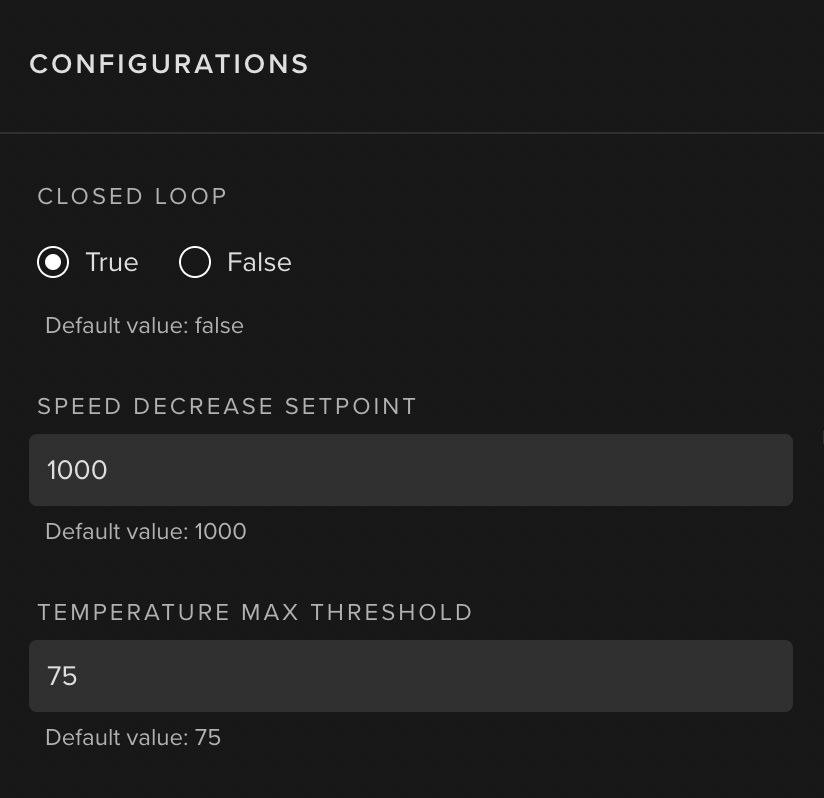
Asset Parameter updates can be done through the UI:
Application Configuration
Application Configuration can optionally be defined and accessed by an application in order to configure the application as a whole. This use case is gonna be explained in the following section.
It holds "global" application configurations that can be defined through an arbitrarily Object structure upon the app.yaml. i.e.:
app:
  type: kelvin
  kelvin:

    configuration:
      connection:
        ip: 192.168.0.1
        port: 4747
      credentials:
        username: my-username
        password: my-password

      temperature_threshold_tolerance: 5
This is how to access the Application Configuration:
-
app_configurationObjectAccess a single
Application Configurationvalue directly from anapp_configurationDictionary Object embedded withinKelvinApp:import asyncio from kelvin.application import KelvinApp async def main() -> None: app = KelvinApp() await app.connect() (...) # Get IP ip = app.app_configuration["connection"]["ip"]Info
app.app_configurationwill only be available afterapp.connect()
Test
Application testing is available in the Kelvin SDK. It consists on a tool that publishes Messages based upon a Kelvin App's Inputs, Asset Parameters and Application Configuration.
It can be used via the kelvin app test command:
Ensure that your terminal is opened in the application's directory before executing these commands. This step is crucial since the Kelvin command utilizes files in the current directory for initialization and operation.
$ kelvin app test

Usage: kelvin app test [OPTIONS] COMMAND [ARGS]...

  Test local applications.

Options:
  --help  Show this message and exit.

Commands:
  csv        Publishes data from a csv to the application
  simulator  Generates random data to application's inputs
This tool has two different ways of publishing test Data Messages:
- Simulator
- CSV (Ingestion)
We will go through each one of them in the following sections.
Simulator
$ kelvin app test simulator
The simulator allows the tester to simulate Data Messages based upon the Application app.yaml inputs.
It supports the following options:
| Parameter | Required | Description | Note |
|---|---|---|---|
--config TEXT |
optional | Path to the app.yaml |
Default: Current directory |
--random / --counter |
optional | Random values / Incremental values | Default: Random values |
--min FLOAT |
optional | Minimum value | Default: 0 |
--max FLOAT |
optional | Maximum value | Default: 100 |
--period FLOAT |
optional | Publishing period in seconds | Default: 5 |
--asset-count INTEGER |
optional | Number of Assets (test-asset-N) | Default: 1 |
--asset-parameter TEXT |
optional | Sets Asset Parameter | Can be used multiple times |
How to use it
Info
In order to show how to use it, we're gonna test the Event Detection (Complex) sample application.
-
Run the Simulator Tool:
$ kelvin app test simulator --config ~/event-detection-complex/app.yaml --counter --min 50 --max 60 --period 1 --asset-parameter temperature_max_threshold=55 --asset-parameter speed_decrease_set_point=1050 --asset-parameter closed_loop=true -
Run the Kelvin App:
$ python3 main.py Application Parameters: {'temperature_threshold_tolerance': 0} Asset Parameters: {'test-asset-1': {'closed_loop': 'true', 'speed_decrease_set_point': '1050', 'temperature_max_threshold': '55'}} (...) Received Motor Temperature | Asset: test-asset-1 | Value: 55.0 Received Motor Temperature | Asset: test-asset-1 | Value: 56.0 Published Motor Speed SetPoint Control Change: 1050 (...) -
Validate Simulator Test Logs:
Client Connected

(...)

Received Data Message:
 Number(id=UUID('b384fdfc-6f70-4a62-a6be-8881e1eb99dc'), type=KMessageTypeData('data', 'pt=number'), trace_id=None, source=None, timestamp=datetime.datetime(2023, 10, 27, 2, 56, 0, 488586, tzinfo=datetime.timezone(datetime.timedelta(seconds=3600), 'WEST')), resource=KRNAssetDataStream(asset='test-asset-1', data_stream='motor_temperature_fahrenheit'), payload=129.2)

Received Data Message:
 Number(id=UUID('a9a5bfb6-d284-4b32-967b-90db550cb037'), type=KMessageTypeData('data', 'pt=number'), trace_id=None, source=None, timestamp=datetime.datetime(2023, 10, 27, 2, 56, 1, 496926, tzinfo=datetime.timezone(datetime.timedelta(seconds=3600), 'WEST')), resource=KRNAssetDataStream(asset='test-asset-1', data_stream='motor_temperature_fahrenheit'), payload=131.0)

Received Control Change Message:
 ControlChangeMsg(id=UUID('3a5ffc75-69b8-4e38-b57c-fabd05d6097b'), type=KMessageTypeControl('control', ''), trace_id=None, source=None, timestamp=datetime.datetime(2023, 10, 27, 2, 56, 2, 497650, tzinfo=datetime.timezone(datetime.timedelta(seconds=3600), 'WEST')), resource=KRNAssetDataStream(asset='test-asset-1', data_stream='motor_speed_set_point'), payload=ControlChangePayload(timeout=None, retries=None, expiration_date=datetime.datetime(2023, 10, 27, 3, 1, 2, 497532, tzinfo=datetime.timezone(datetime.timedelta(seconds=3600), 'WEST')), payload='1050'))

(...)
CSV (Ingestion)
$ kelvin app test csv
The csv tool allows the tester to ingest Messages from a CSV file.
It supports the following options:
| Parameter | Required | Description | Note |
|---|---|---|---|
--csv TEXT |
required | Path to the CSV file | N/A |
--config TEXT |
optional | Path to the app.yaml |
Default: Current directory |
--publish-rate FLOAT |
optional | Overrides CSV Publishing rate (in seconds) | 0 forces instant feed |
--offset-timestamps |
optional | Offsets the first row timestamp to the current time | Default: CSV timestamps |
--asset-count INTEGER |
optional | Number of Assets (test-asset-N) | Default: 1 |
--asset-parameter TEXT |
optional | Sets Asset Parameter | Can be used multiple times |
CSV Structure
Event Detection CSV Data Example:
timestamp,motor_temperature
2023-10-27 10:00:01.0,50
2023-10-27 10:00:02.0,51
2023-10-27 10:00:03.0,52
2023-10-27 10:00:04.0,53
2023-10-27 10:00:05.0,54
2023-10-27 10:00:06.0,55
2023-10-27 10:00:07.0,56
2023-10-27 10:00:08.0,57
2023-10-27 10:00:09.0,58
2023-10-27 10:00:10.0,59
2023-10-27 10:00:11.0,60
The CSV file structure needs to be built according to the following rules:
- timestamp can be any Arrow supported format
- i.e.:
Unix timestamp,Datetime, etc
- i.e.:
- Supports 1 to N
inputs- i.e.: motor_temperature, etc
Asset Parametercolumns can be added- i.e.: temperature_max_threshold, speed_decrease_set_point, closed_loop, etc
How to use it
Info
In order to show how to use it, we're gonna test the Event Detection (Complex) sample application.
-
Run the CSV Tool:
$ kelvin app test csv --config ~/event-detection-complex/app.yaml --csv ~/event-detection-complex/csv/data_export.csv --asset-parameter temperature_max_threshold=55 --asset-parameter speed_decrease_set_point=1050 --asset-parameter closed_loop=true -
Run the Kelvin App:
$ python main.py Application Parameters: {'temperature_threshold_tolerance': 0} Asset Parameters: {'test-asset-1': {'closed_loop': 'true', 'speed_decrease_set_point': '1050', 'temperature_max_threshold': '55'}} (...) Received Motor Temperature | Asset: test-asset-1 | Value: 55.0 Received Motor Temperature | Asset: test-asset-1 | Value: 56.0 Published Motor Speed SetPoint Control Change: 1050 (...) -
Validate CSV Test Logs:
Client Connected

(...)

Received Data Message:
 Number(id=UUID('f8771d05-e086-4124-9c28-8ee6b27e053d'), type=KMessageTypeData('data', 'pt=number'), trace_id=None, source=None, timestamp=datetime.datetime(2023, 10, 27, 18, 47, 14, 941906, tzinfo=datetime.timezone(datetime.timedelta(seconds=3600), 'WEST')), resource=KRNAssetDataStream(asset='test-asset-1', data_stream='motor_temperature_fahrenheit'), payload=129.2)

Received Data Message:
 Number(id=UUID('d23f7899-0452-4e40-a3ec-6fa3c69c8210'), type=KMessageTypeData('data', 'pt=number'), trace_id=None, source=None, timestamp=datetime.datetime(2023, 10, 27, 18, 47, 15, 944177, tzinfo=datetime.timezone(datetime.timedelta(seconds=3600), 'WEST')), resource=KRNAssetDataStream(asset='test-asset-1', data_stream='motor_temperature_fahrenheit'), payload=131.0)

Received Control Change Message:
 ControlChangeMsg(id=UUID('b7eed53c-3b62-4809-9c43-2b0b70451fc5'), type=KMessageTypeControl('control', ''), trace_id=None, source=None, timestamp=datetime.datetime(2023, 10, 27, 18, 47, 16, 944724, tzinfo=datetime.timezone(datetime.timedelta(seconds=3600), 'WEST')), resource=KRNAssetDataStream(asset='test-asset-1', data_stream='motor_speed_set_point'), payload=ControlChangePayload(timeout=None, retries=None, expiration_date=datetime.datetime(2023, 10, 27, 18, 52, 16, 944690, tzinfo=datetime.timezone(datetime.timedelta(seconds=3600), 'WEST')), payload='1050'))

(...)

CSV ingestion is complete