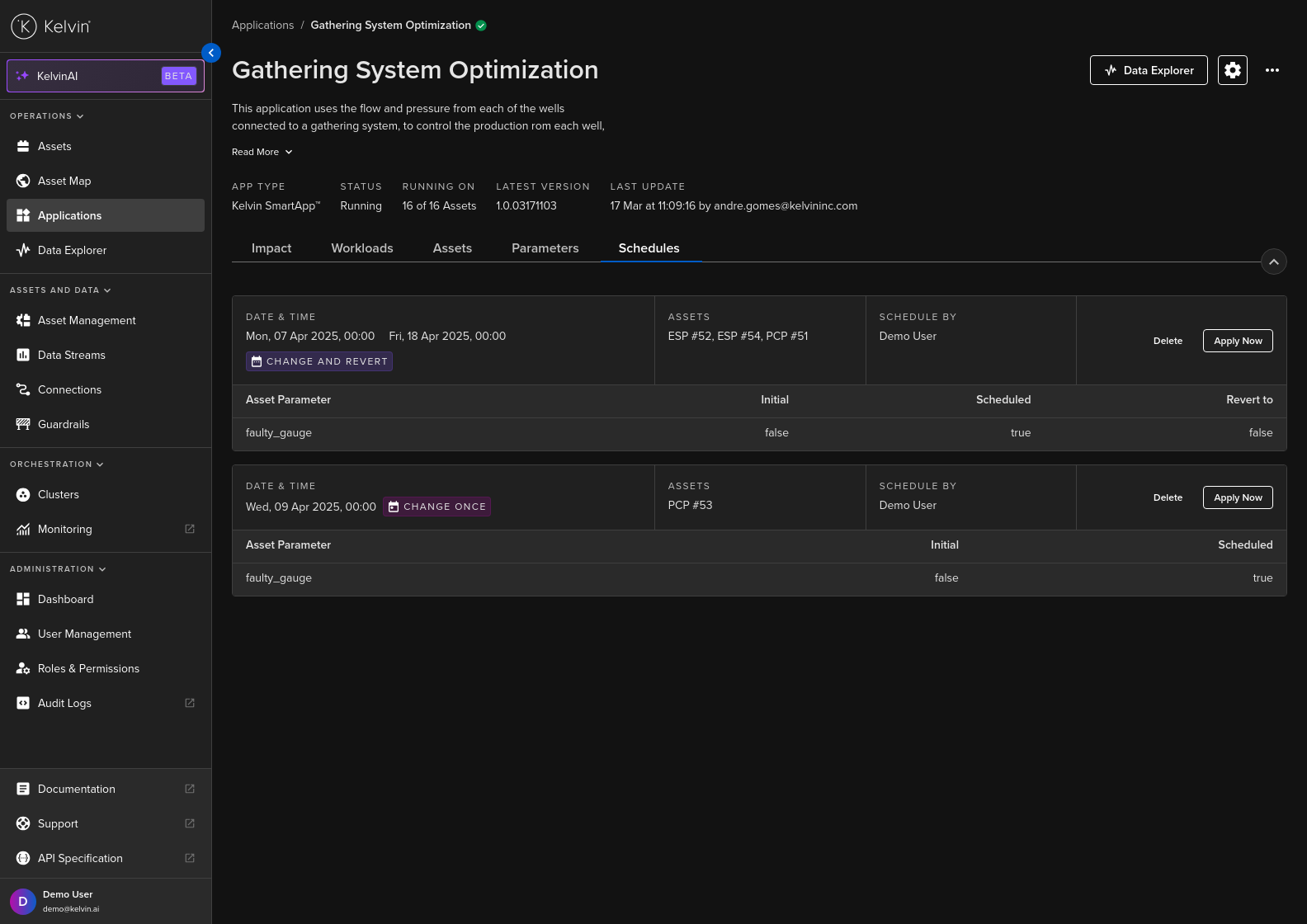
Create Schedule
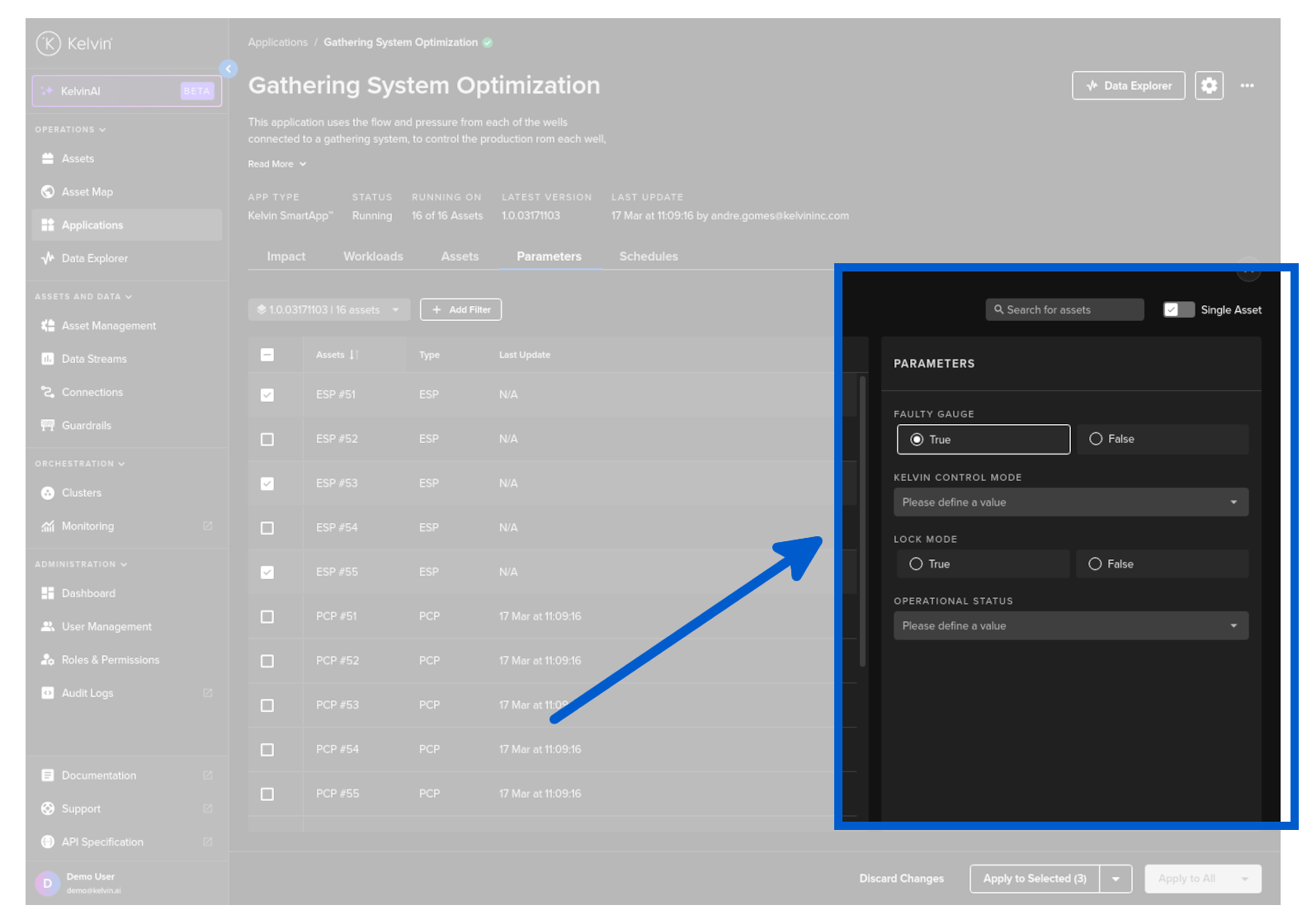
Select the Asset or Assets you want to set a scheduled parameter change.
If you do not select any Assets then you will only be able to choose the Apply to All schedule or if you have turned on Single Asset, then the schedule will only be applied to the one Asset.
Change the parameters that you want to update.
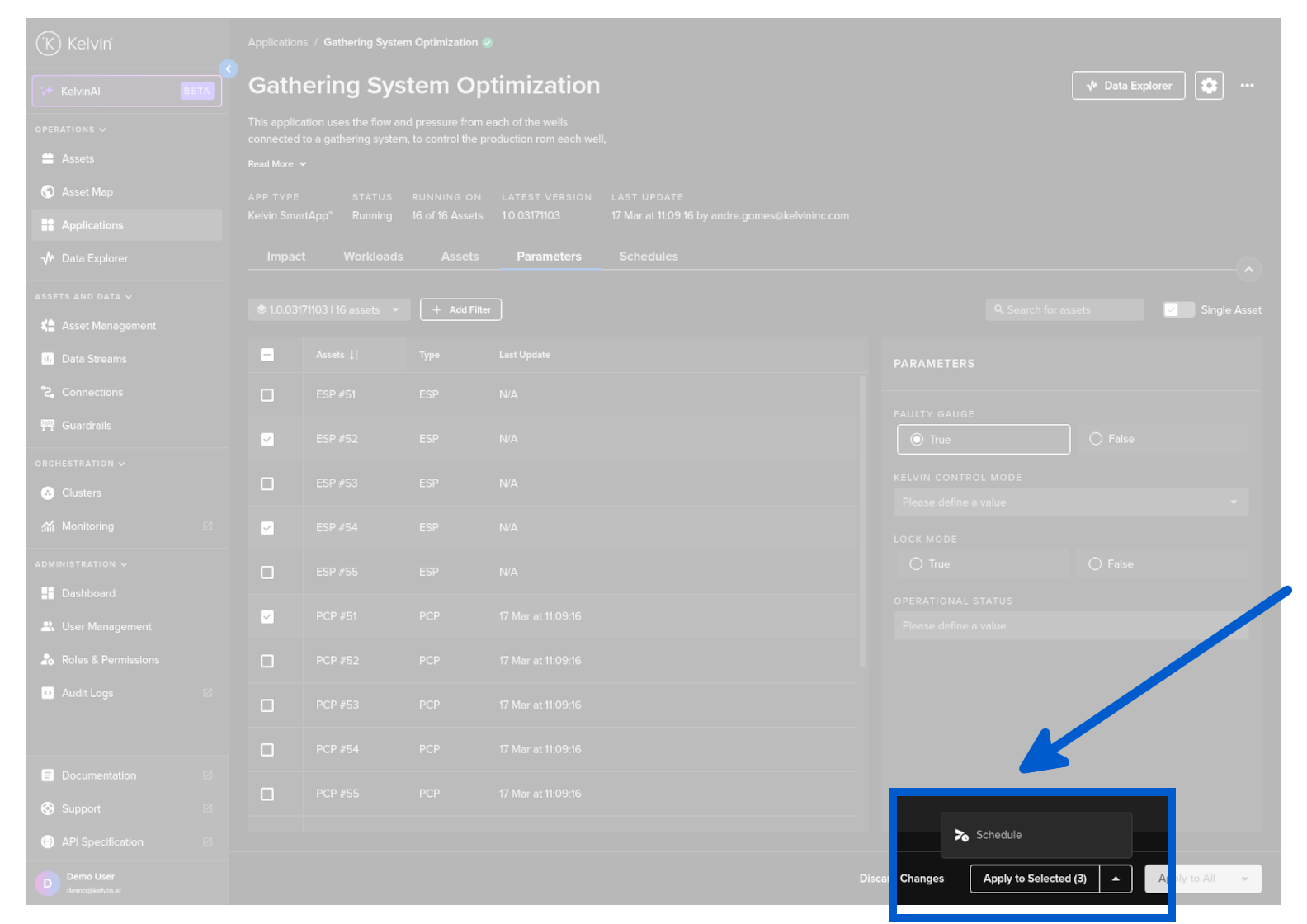
Click the down arrow at the right hand side of the button and click on Schedule option.
This the same procedure regardless if you are changing one asset, multiple assets or all asset App parameters.
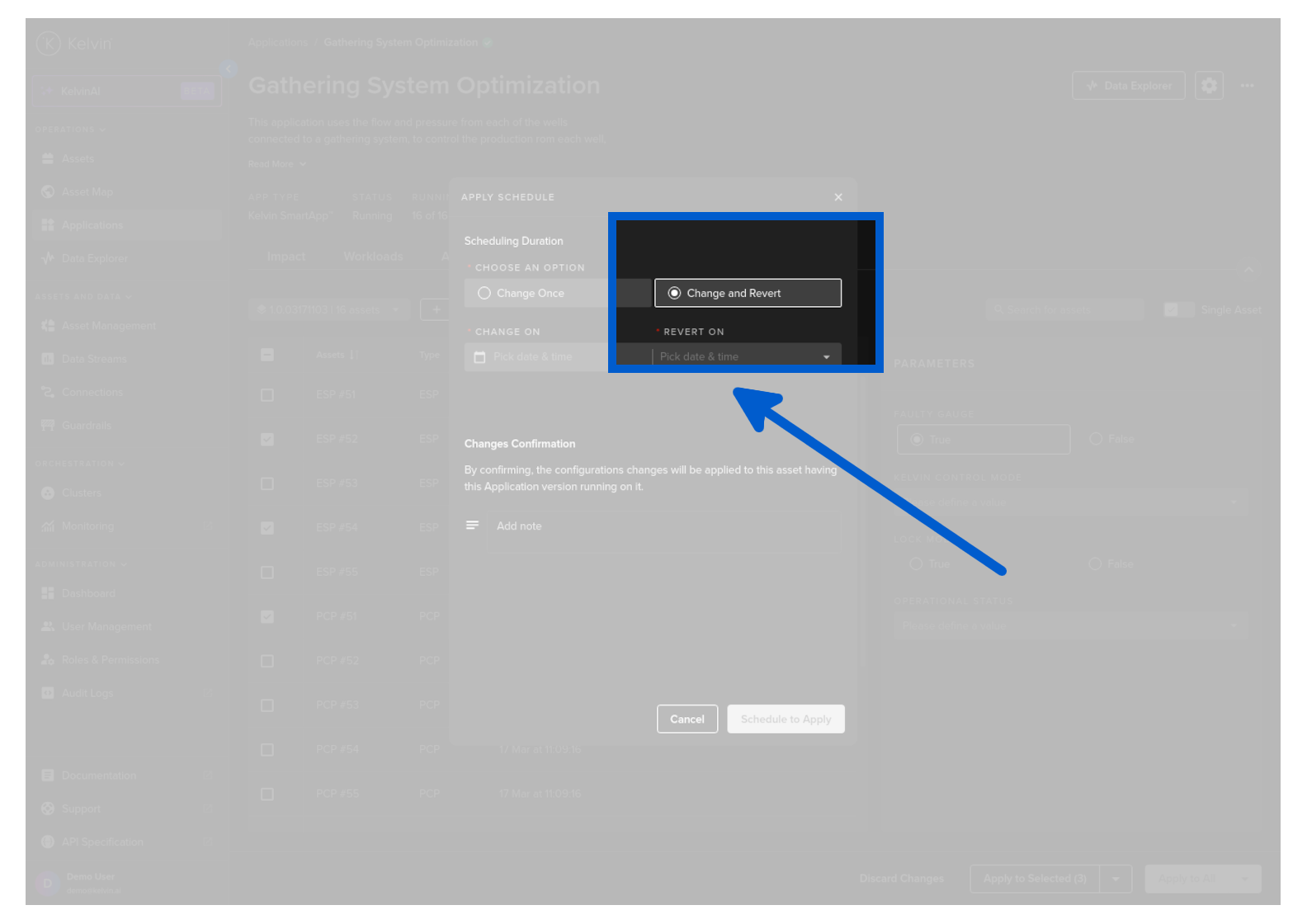
Choose a Scheduling Option. For this example we will choose Change and Revert
Change Once will change the parameters at the scheduled time and then mark the schedule completed.
Change and Revert will change the parameters at the scheduled time and then change them again to a second value at a second scheduled time. Then the schedule will be marked completed. You will see the options of what value to put in the second value later in this page.
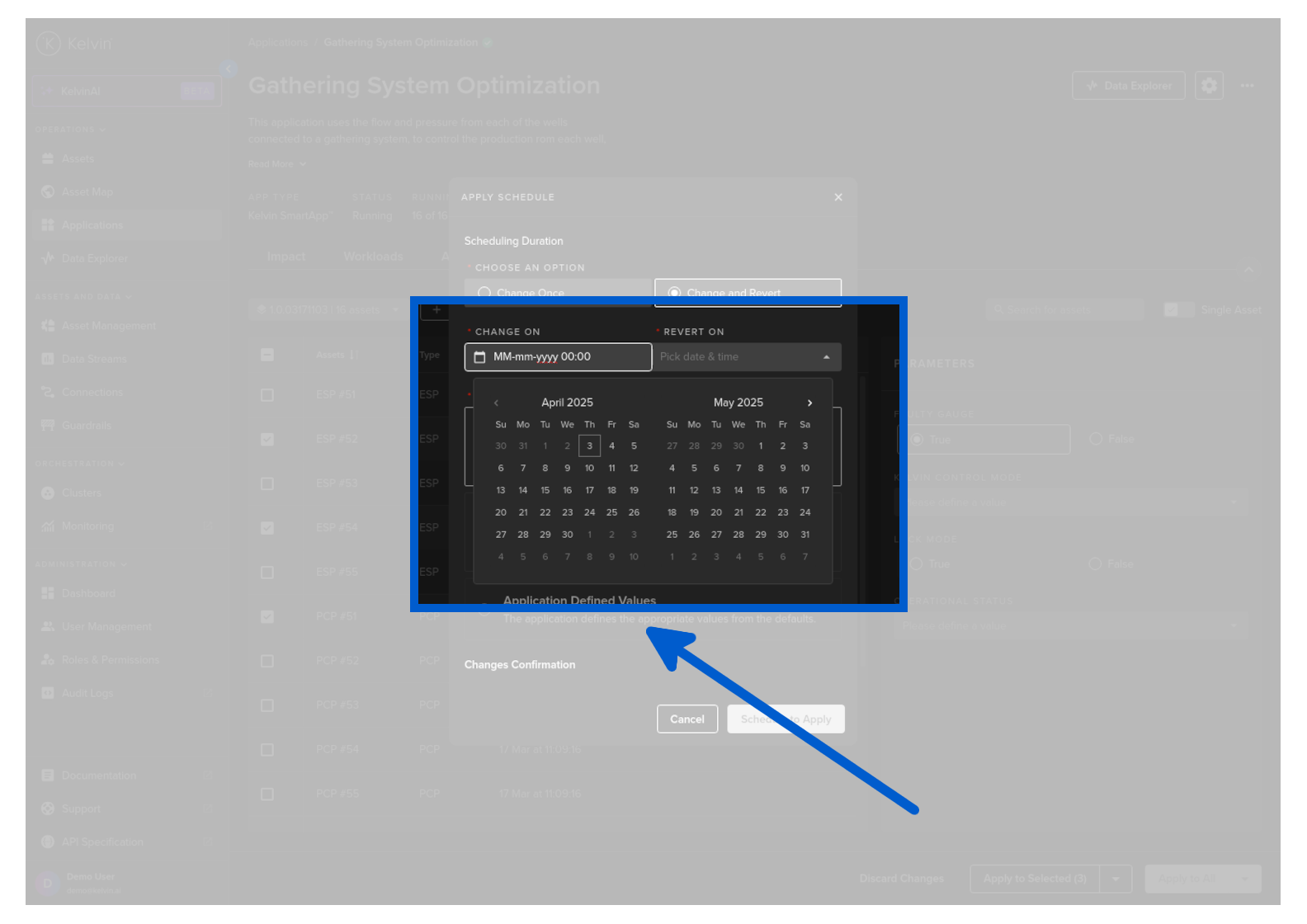
Select the date and time for the change and the revert.
The revert time must be a date/time that occurs after the change date/time.
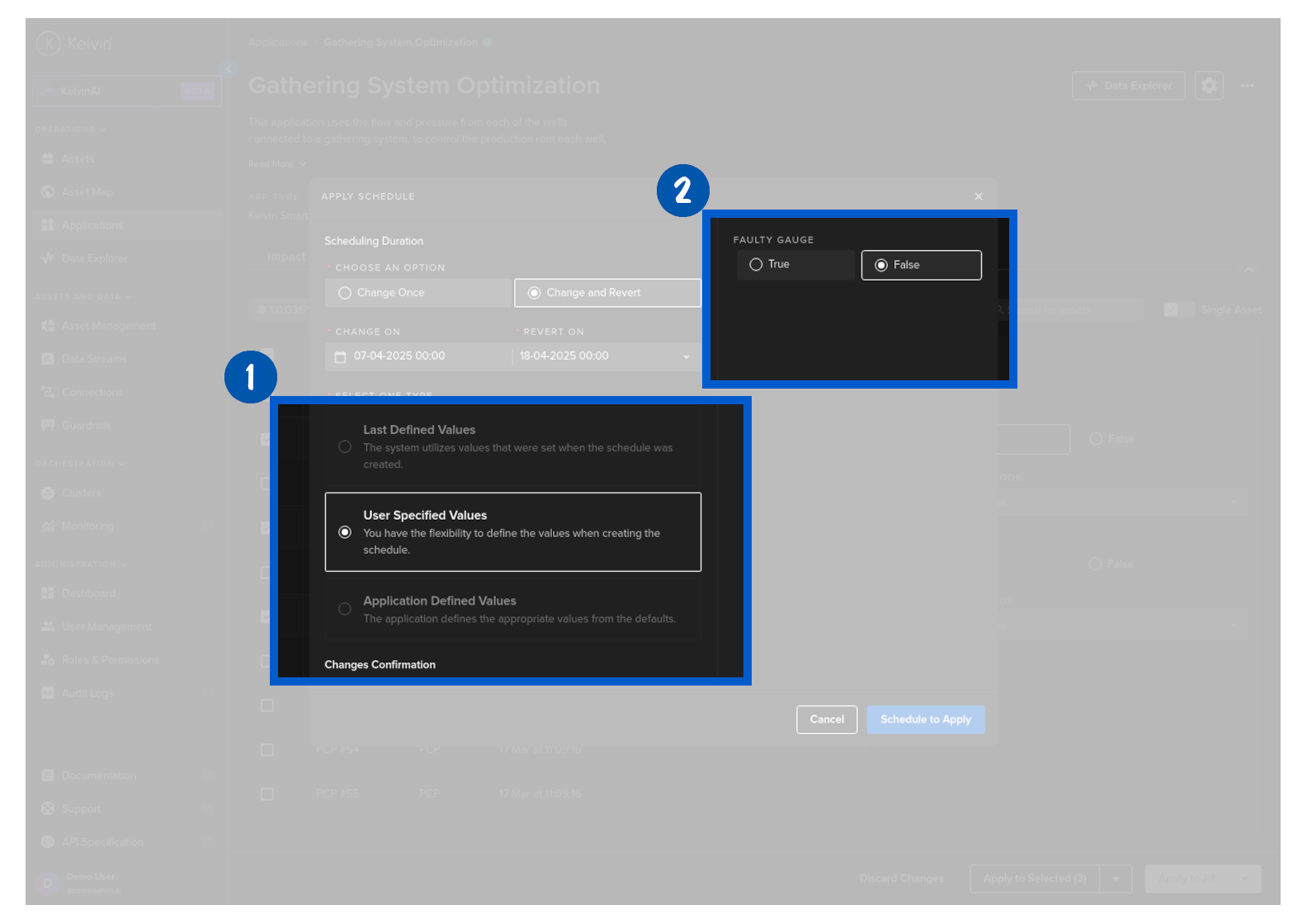
The Select One Type option only appears if you have selected Change and Revert option above. This will define what parameter values to put into the Assets during the revert stage of the Scheduled Parameter change event.
| Type | Description |
|---|---|
| Last Defined Values | The original parameter values of each Asset will be written to the parameter at the revert date/time |
| User Specified Values | You can select new parameter values for each Parameter that has been changed. All Assets will receive the same Parameter value at the revert date/time. |
| Application Defined Values | The default values of each App Parameter value will be written to the parameter at the revert date/time |
For this example we will select User Specified Values and put in our revert values for each parameter.
Only parameters that were changed will be show here for a revert value. Any parameters that were not changed will not be shown here. For example GAS FLOW RATE MIN THRESHOLD does not appear as you did not request an initial value change.
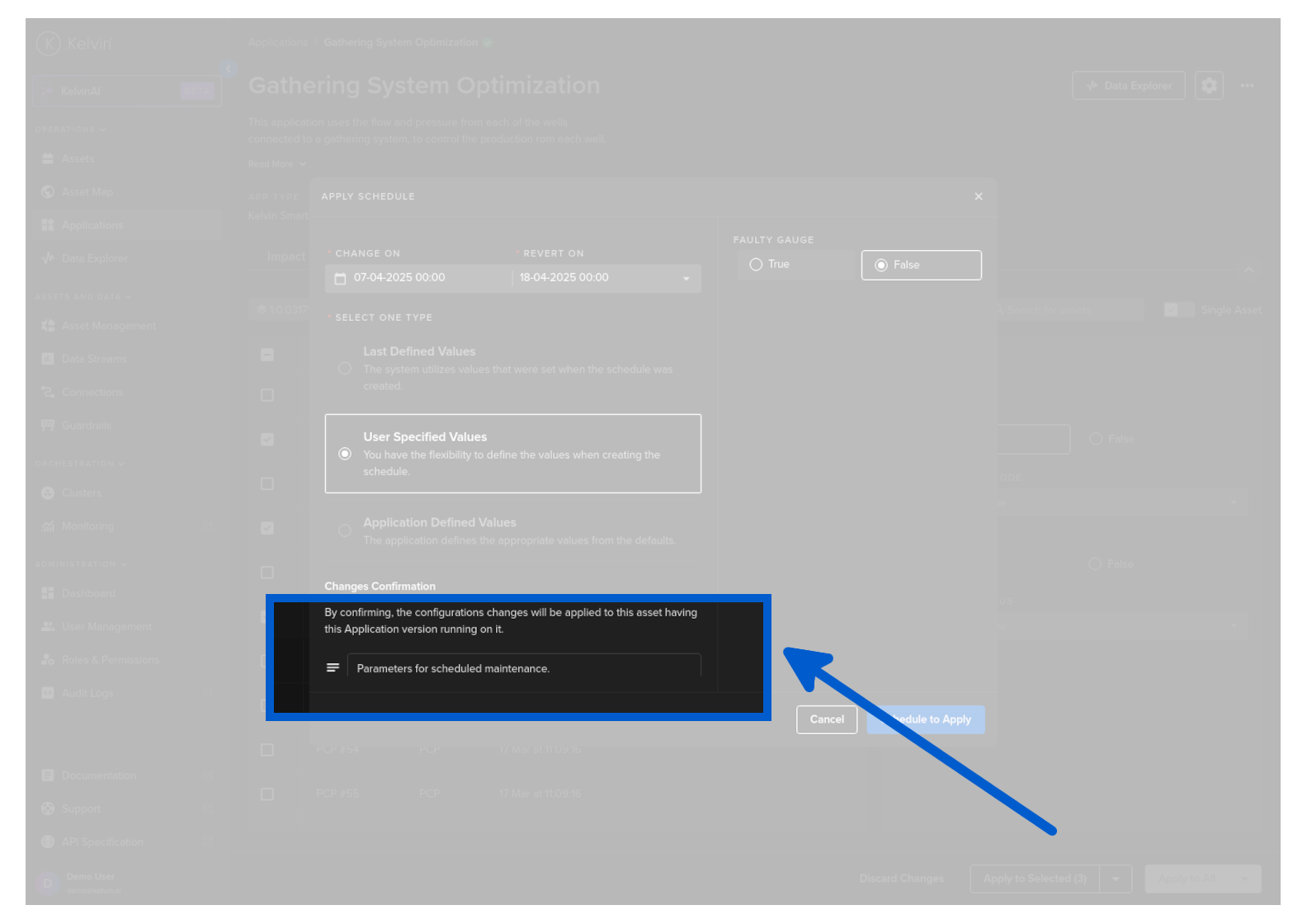
Optionally you can add a note for future reference about this scheduled change.
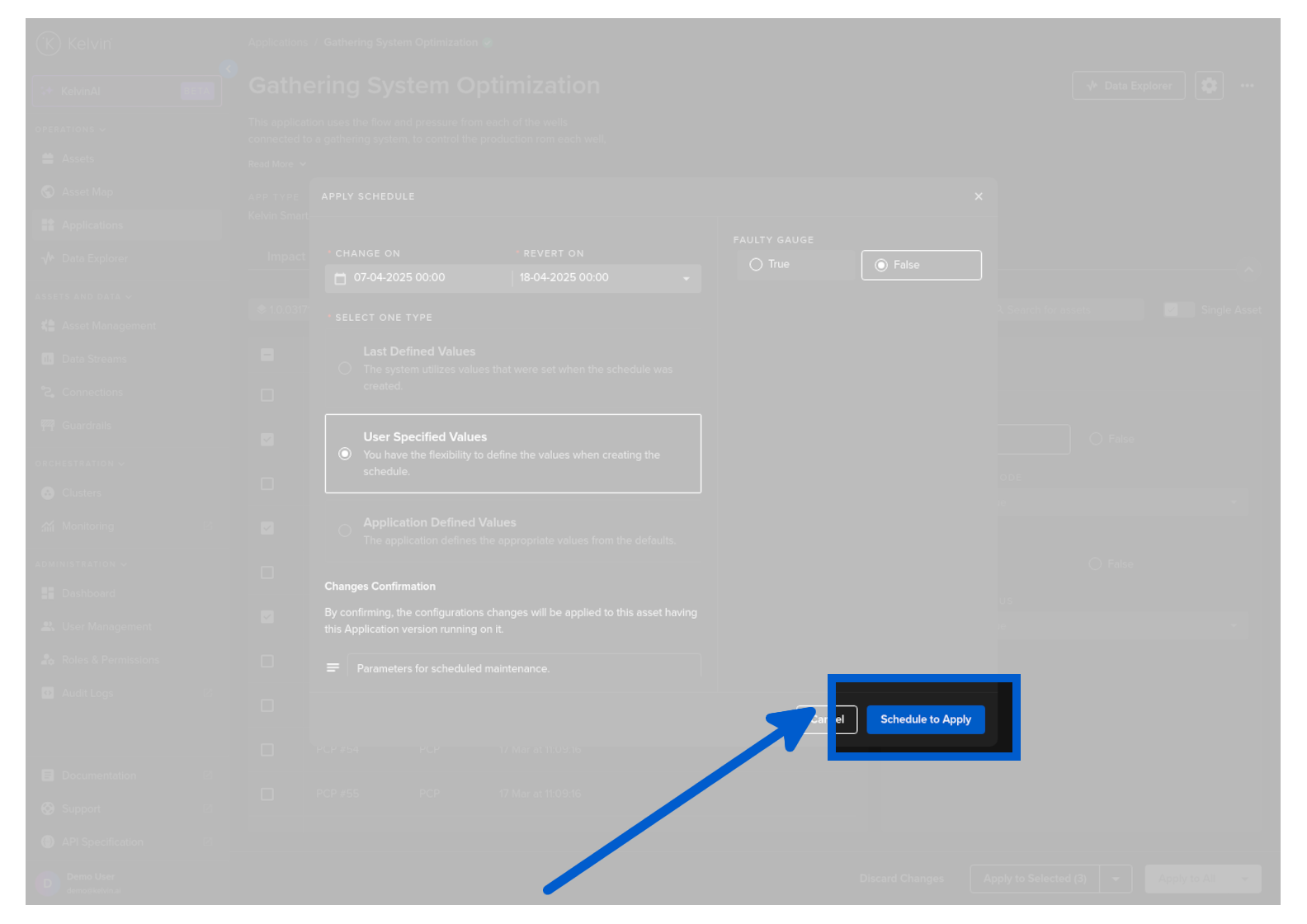
Then click Schedule to Apply.
You will then see your schedule appear in the Schedule tab in the Application section at the bottom of the page.