Adding Assets
On this page you will learn how to add new Assets to an Application in the Application section of Kelvin UI.
An Application can be processing many thousands of Assets at the same time. Kelvin UI makes it easy to monitor the status of all these Assets and quickly add or delete Assets to the Application.
The management of the Assets in an Application is done through the Management Tab of the Application.
To start, go to the Application dashboard page and select the Application where your Assets have been deployed.
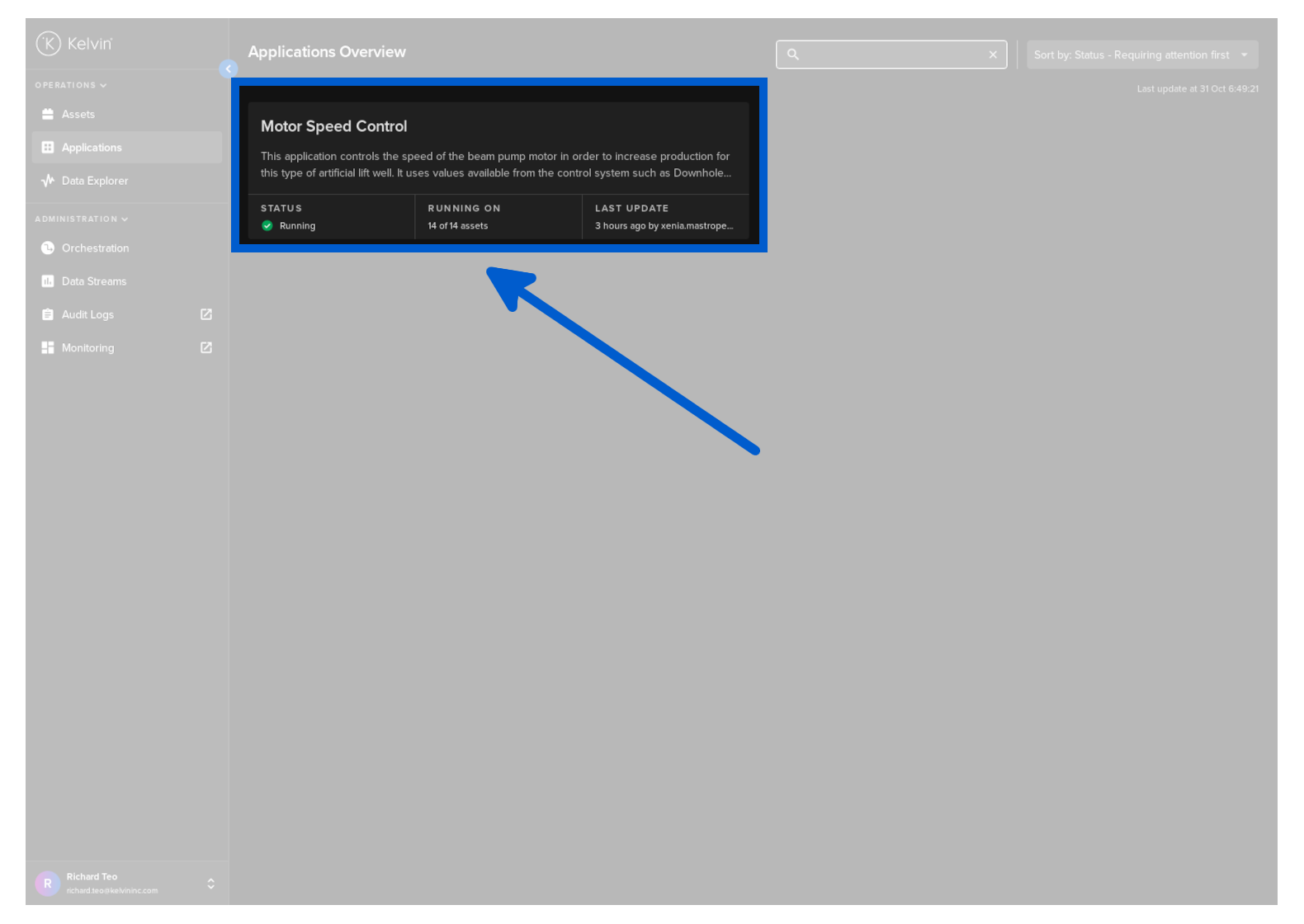
You will then be presented with the Application's details page.
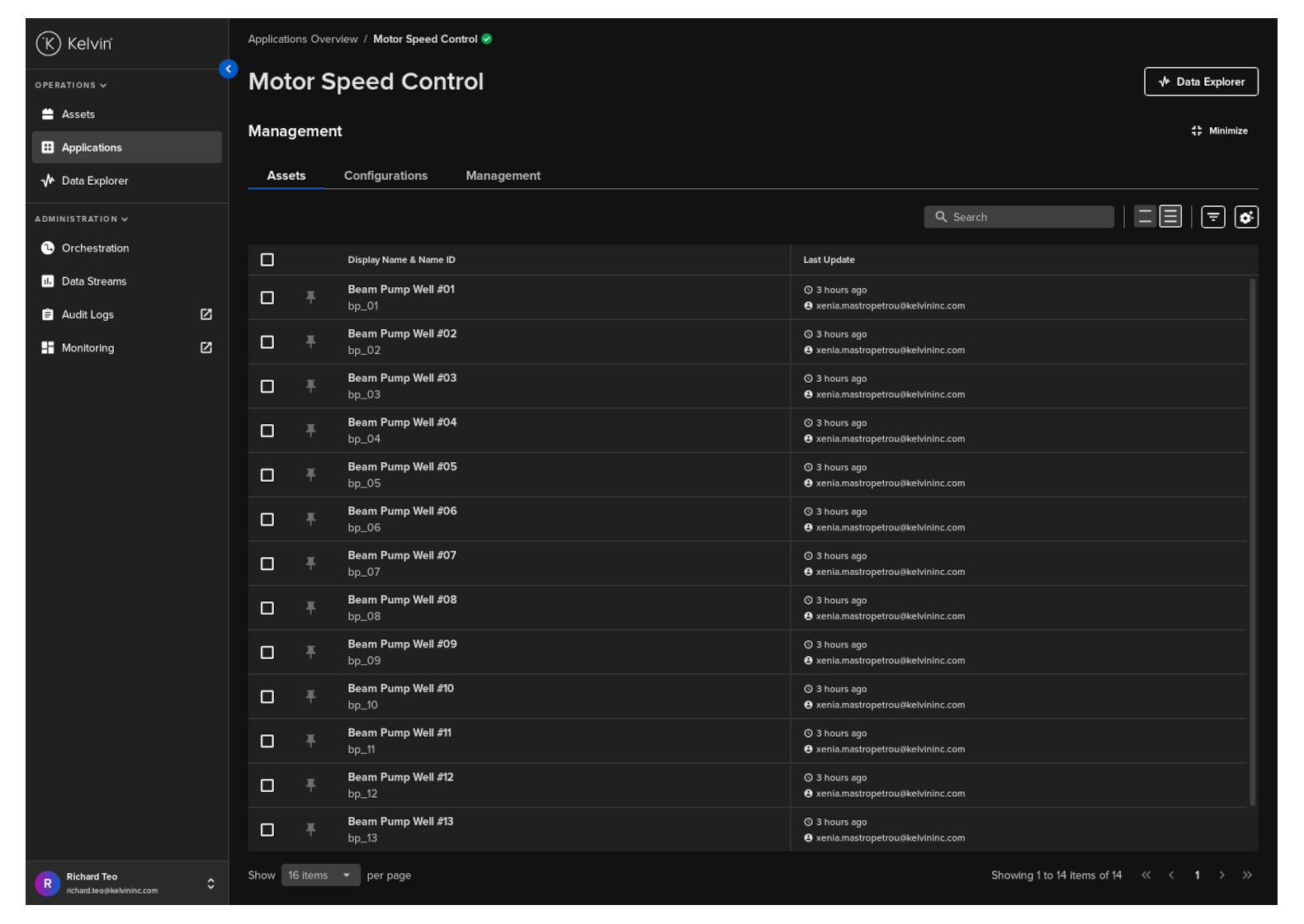
Click on the Management tab, and you can see a list of Assets and the configuration options for the Application.
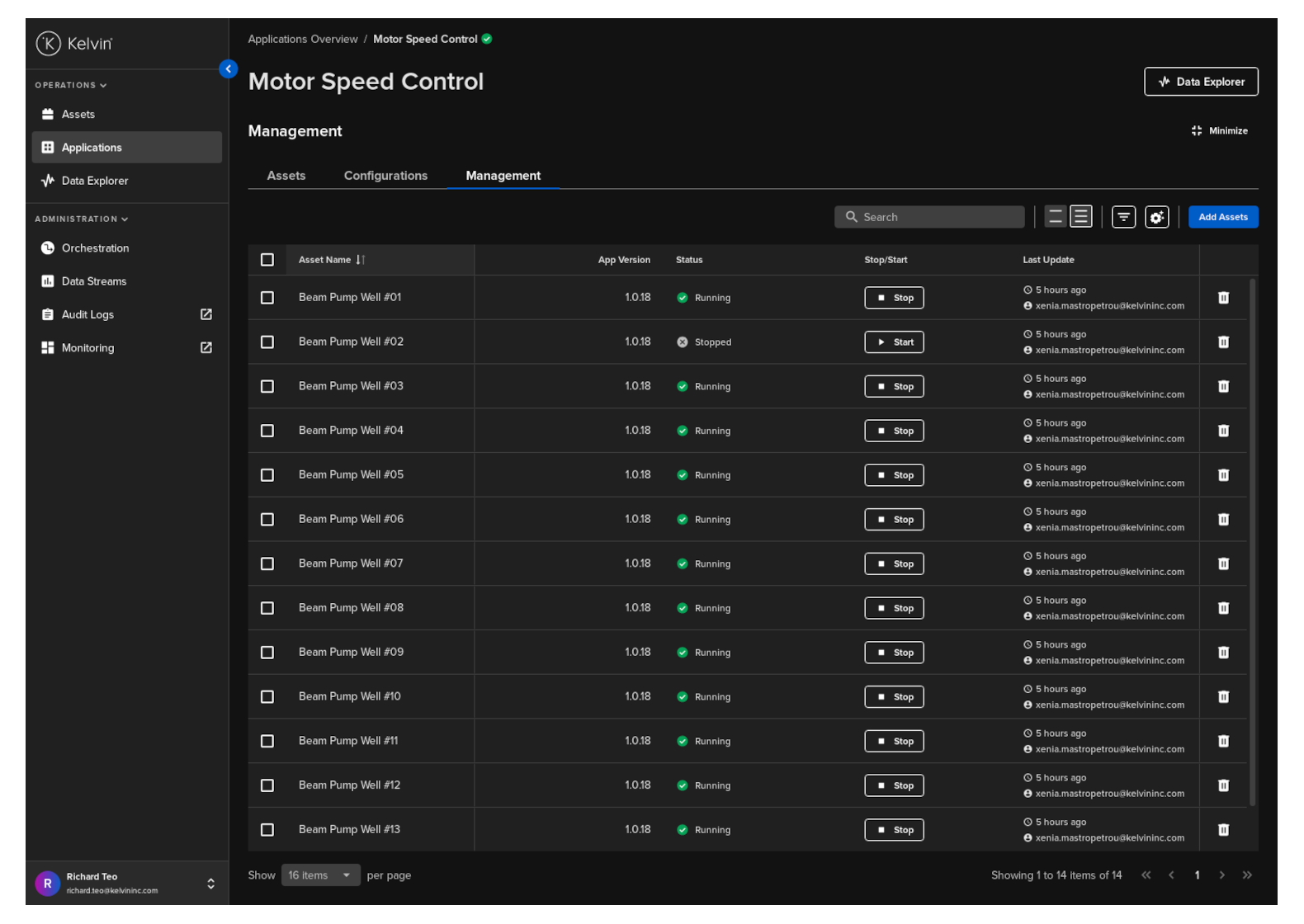
Click on the Add Assets button.
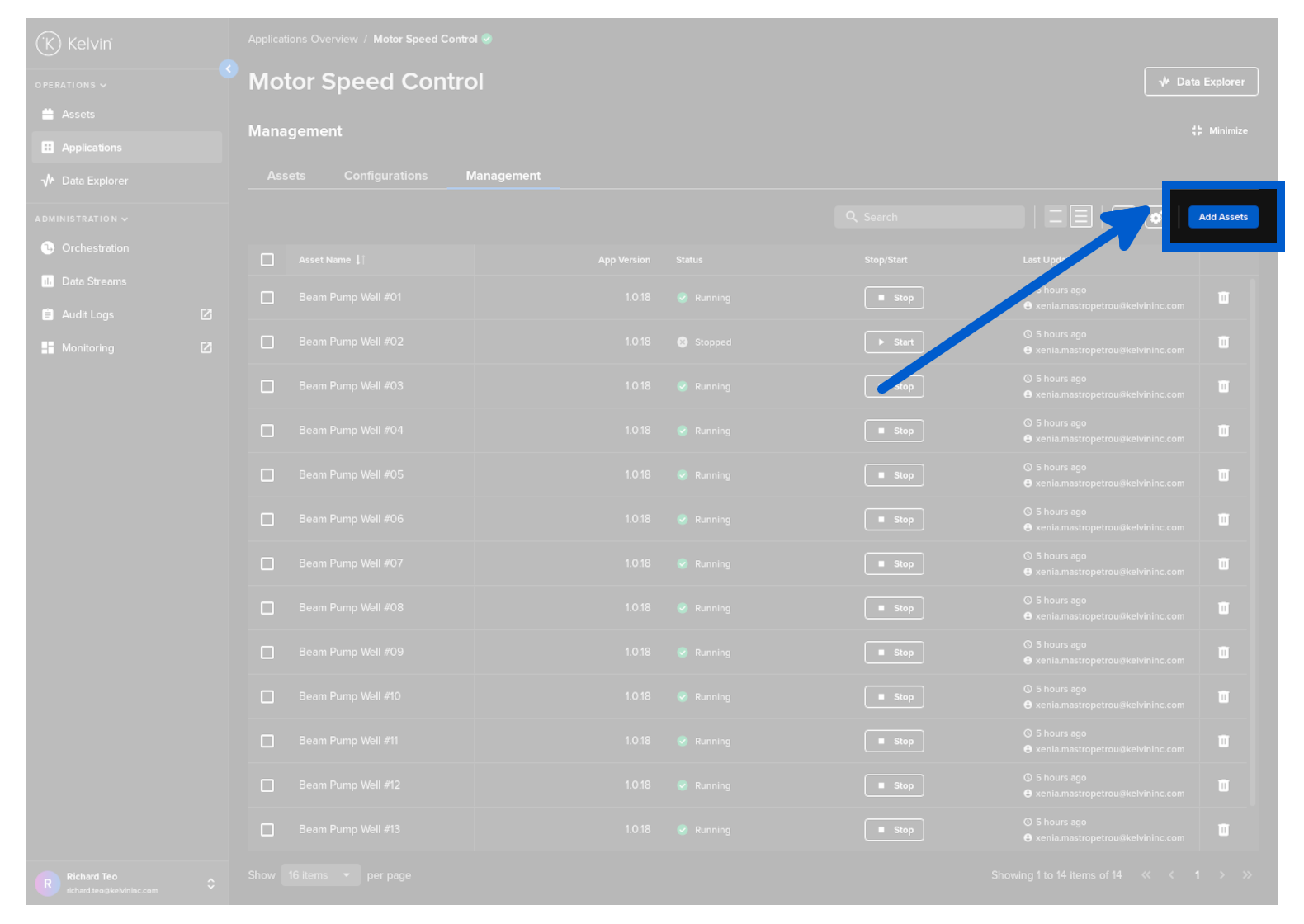
Step 1 - Select Application Version
On the first page, select the version of the Application you want to use for the Assets you will add.
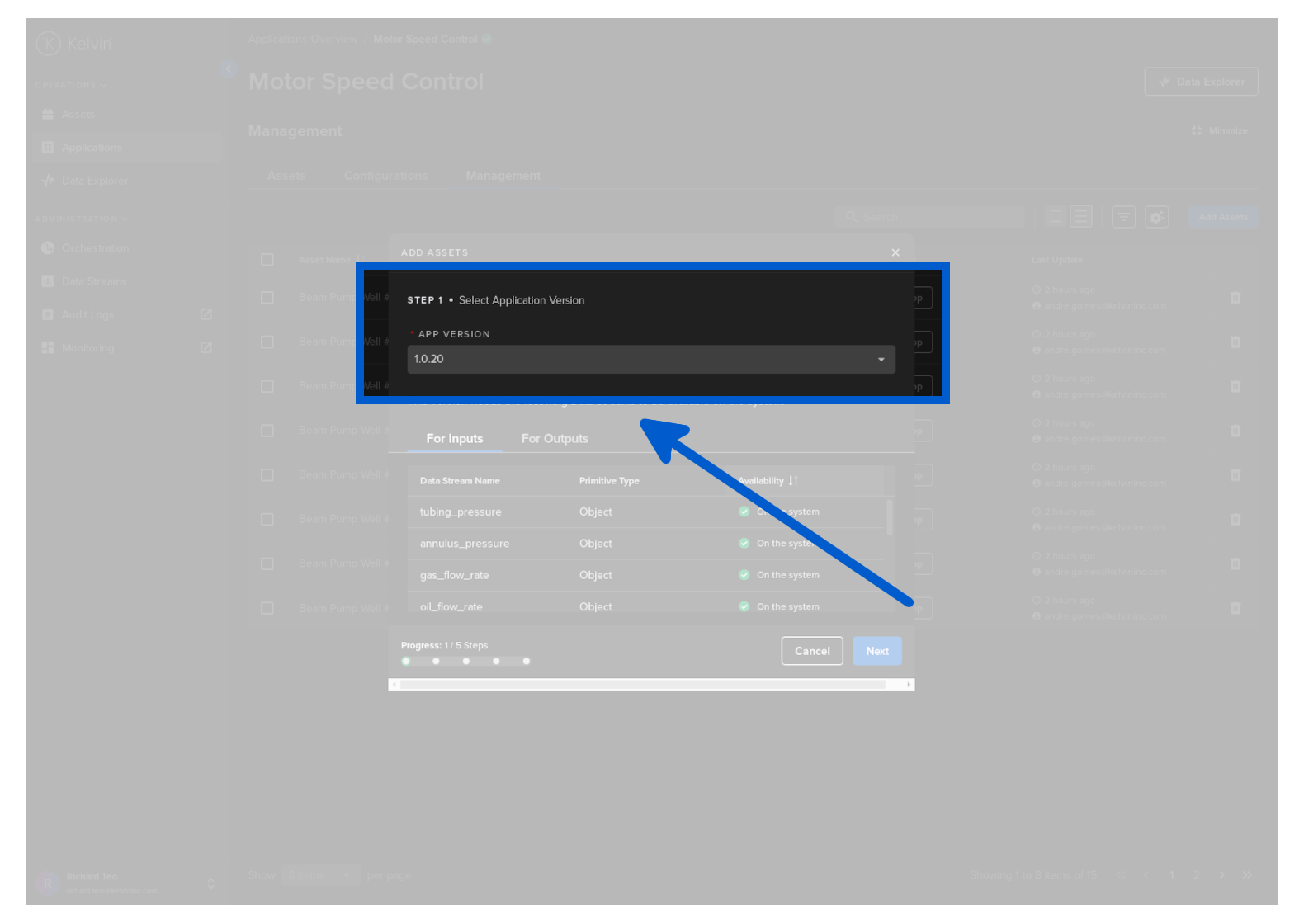
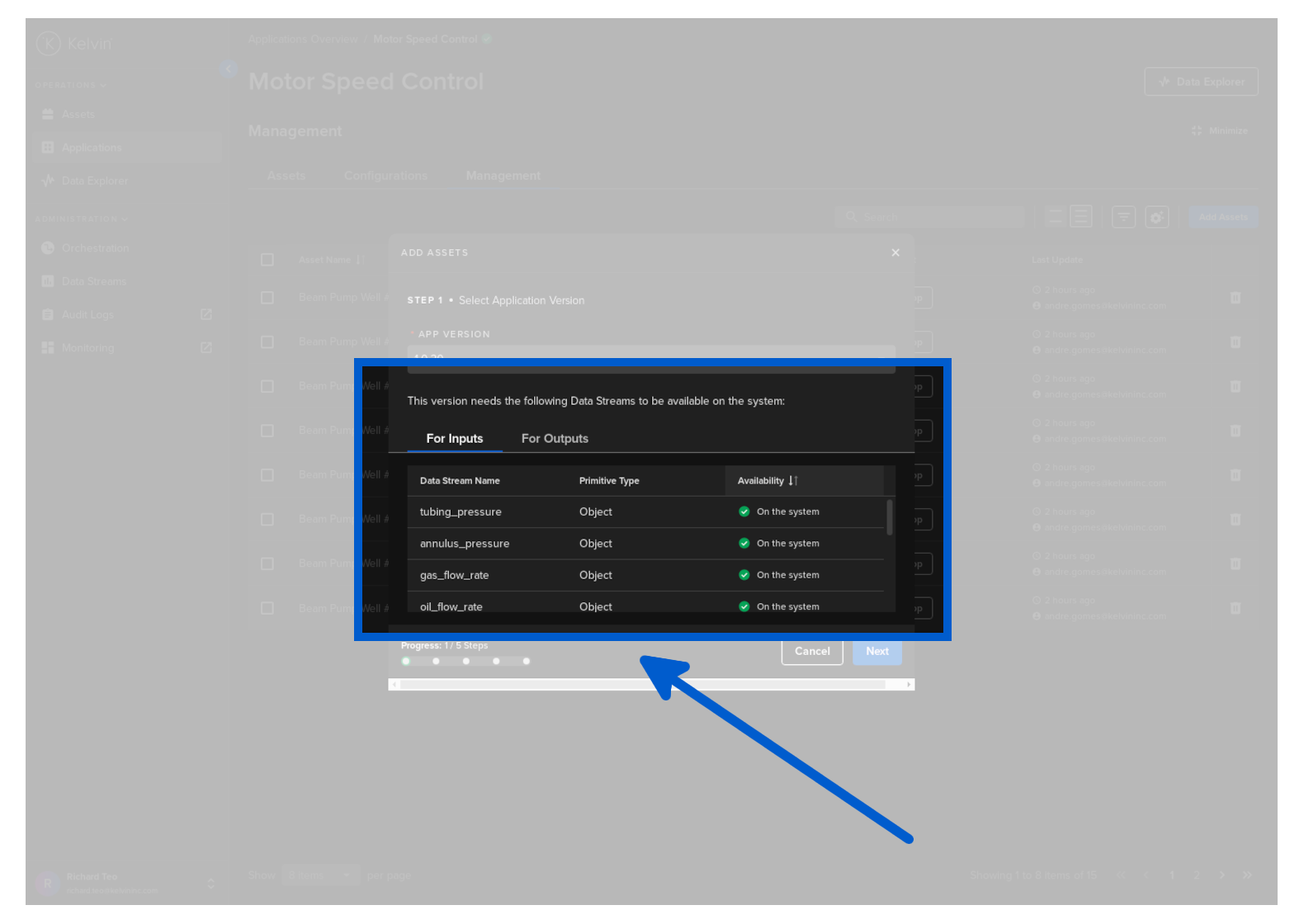
When you select a version, you will see all the inputs and outputs in the For Inputs and For Outputs tabs that are required. You will also be informed if any of the Data Streams do not exist on your Kelvin Cloud.
Step 2 - Select Assets
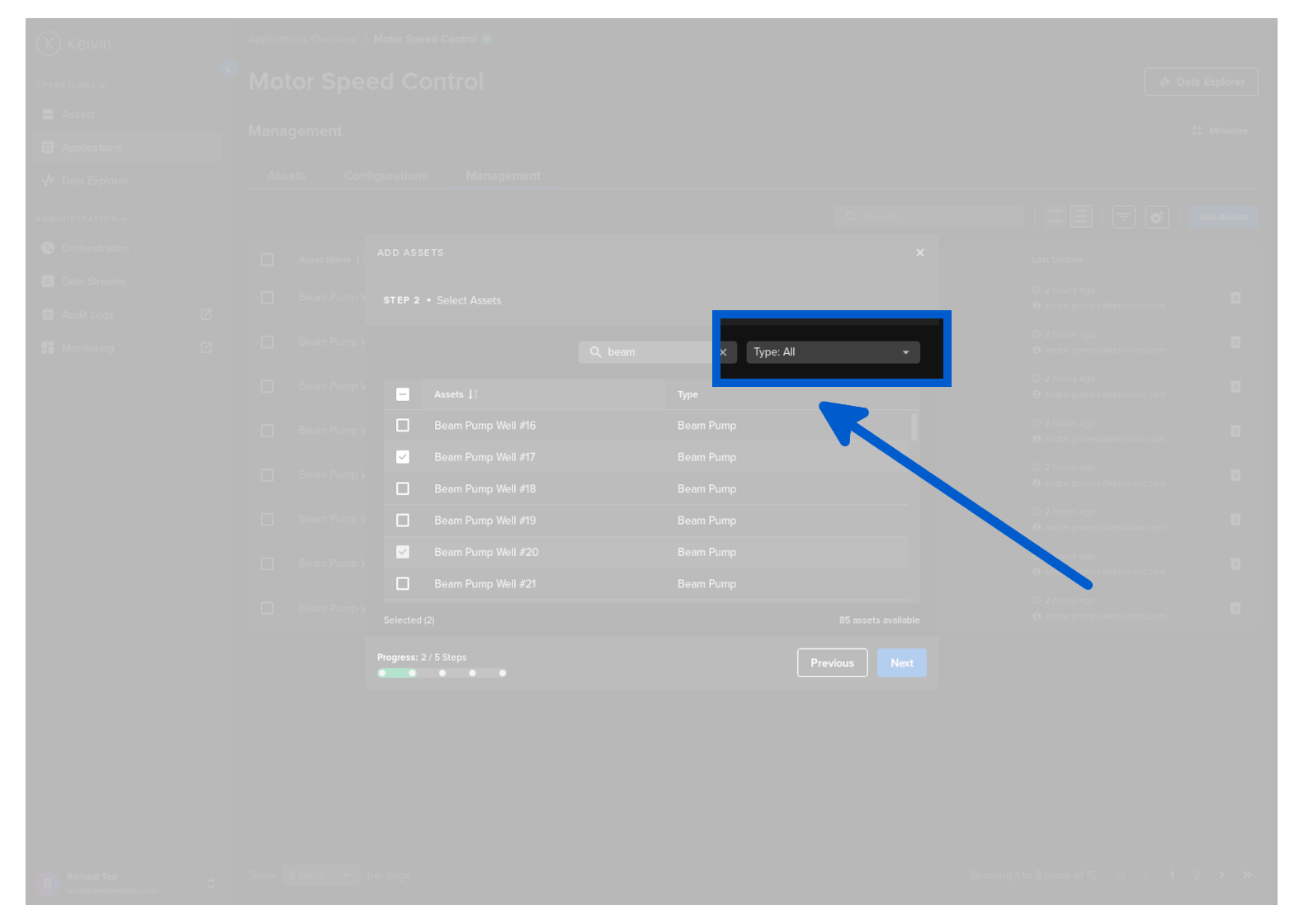
Now select the Assets that you want to add to this Application.
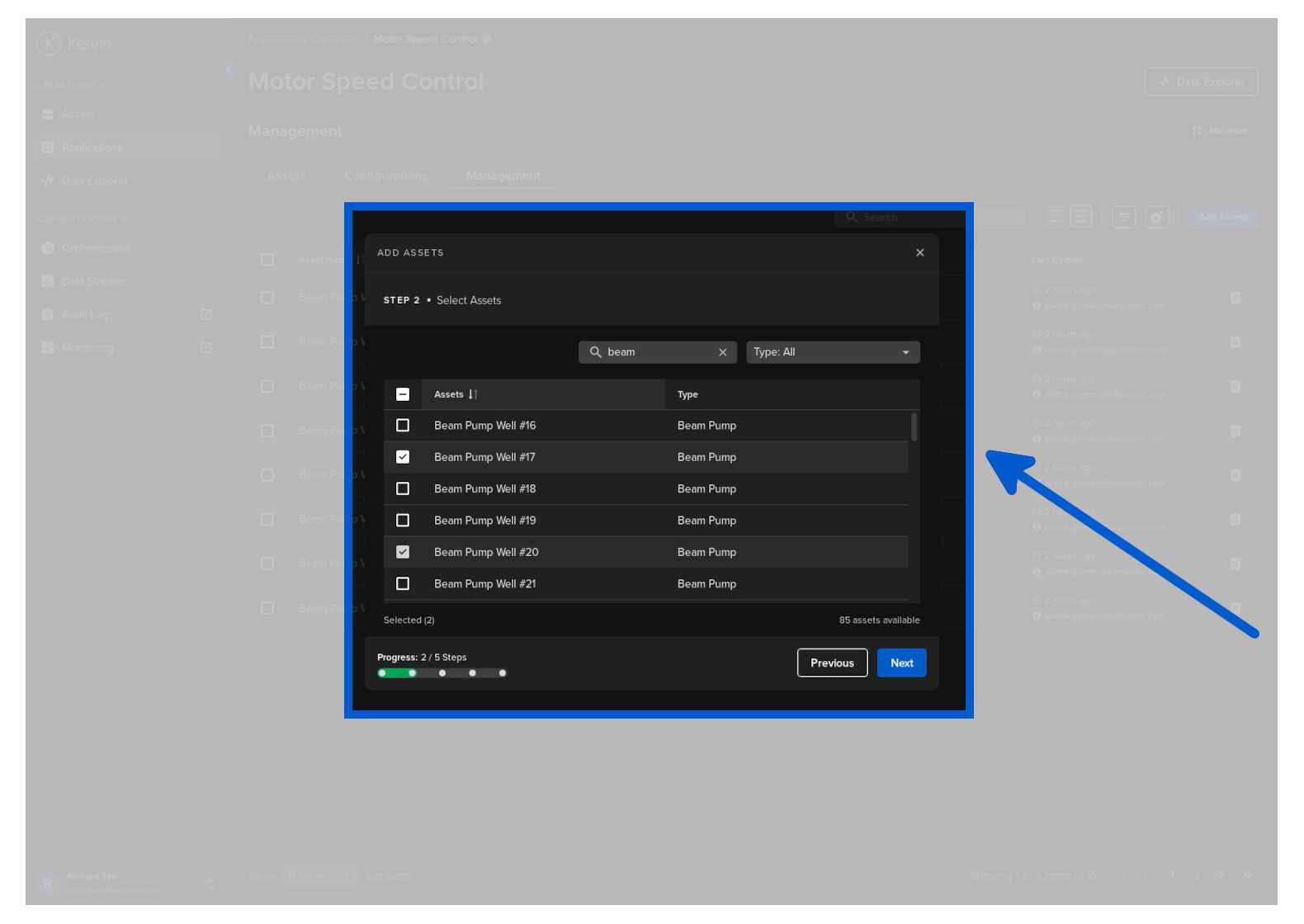
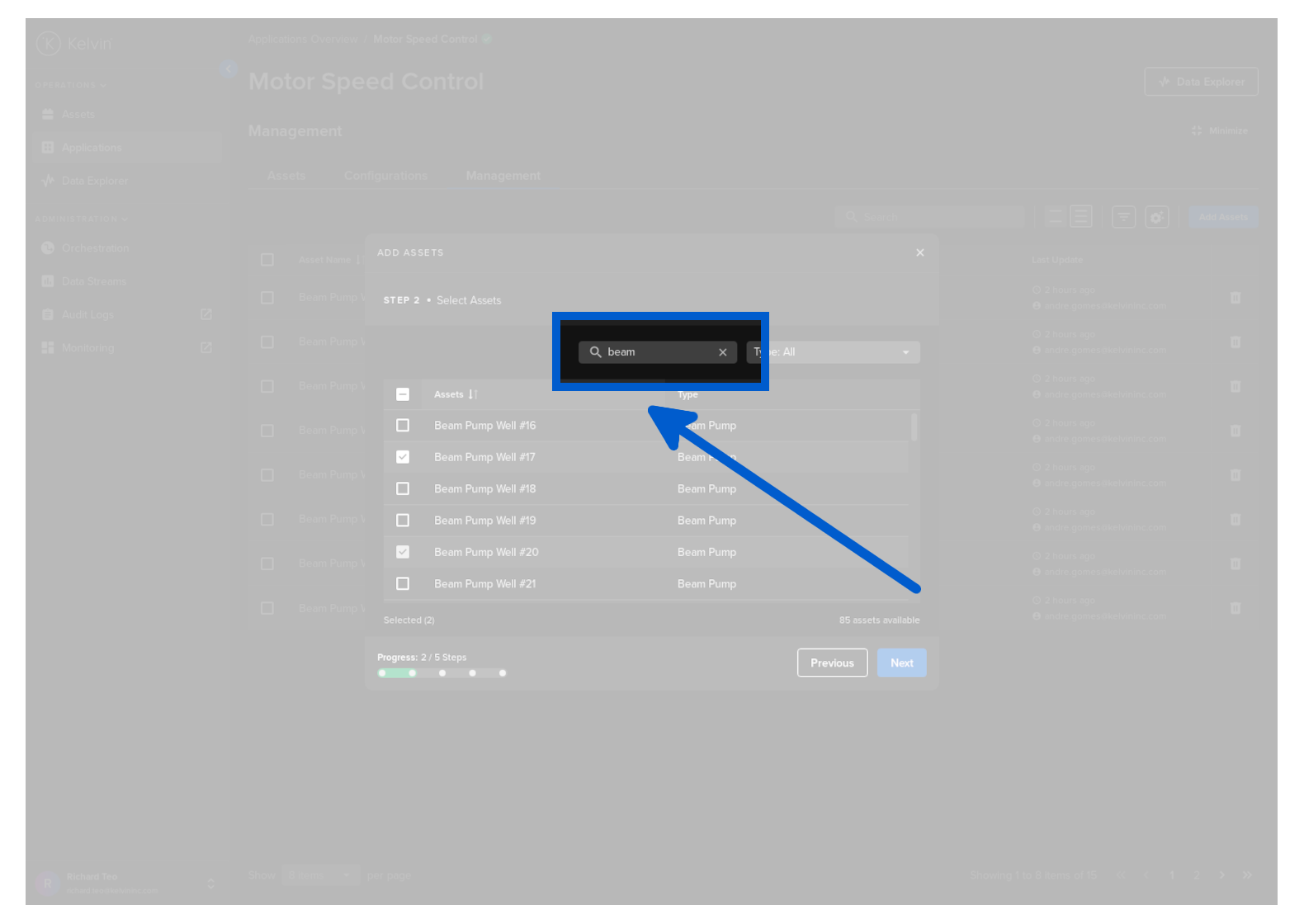
You can search and filter the list to quickly find the Assets that you want to add.
!!! info ""

You have the capability to perform multiple searches, selecting Assets in each. The system will retain your selections, keeping the Assets selected even as you clear the results and conduct new searches.
You can also filter on Asset Types.
This is a drop down list that you can select one or multiple Asset Types to filter.
Step 3 - Inputs Mapping
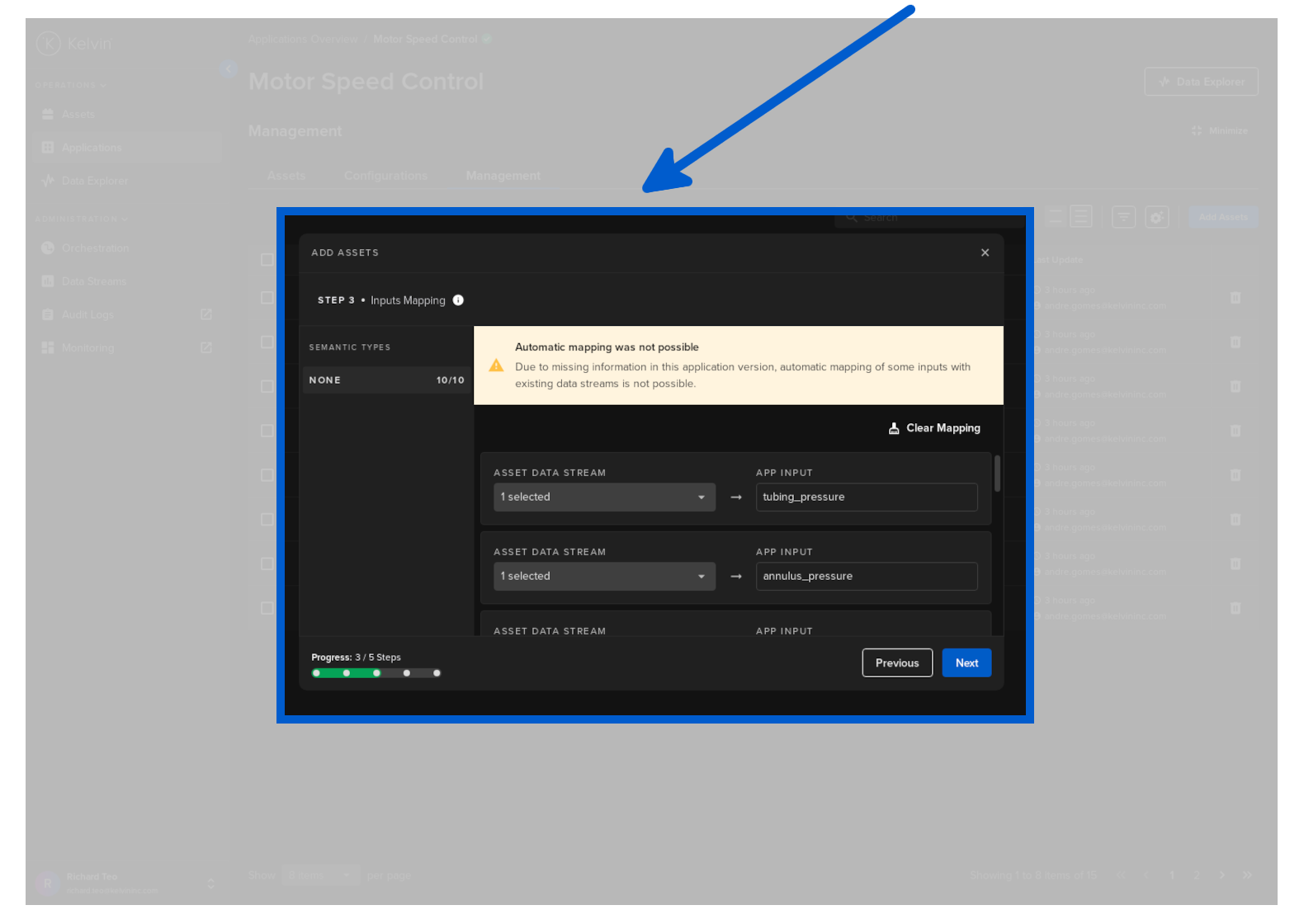
Now ensure that all the Application inputs are connected to the right Data Streams.
The Data Streams were checked back in step 1.
Kelvin UI will attempt to automatically match and connect the right Data Stream to the Application input. This helps speed up this matching step and avoid errors in the connections.
While Kelvin UI generally ensures accurate Data Stream to Application matching, users are encouraged to verify the connections for correctness.
Step 4 - Output Mapping
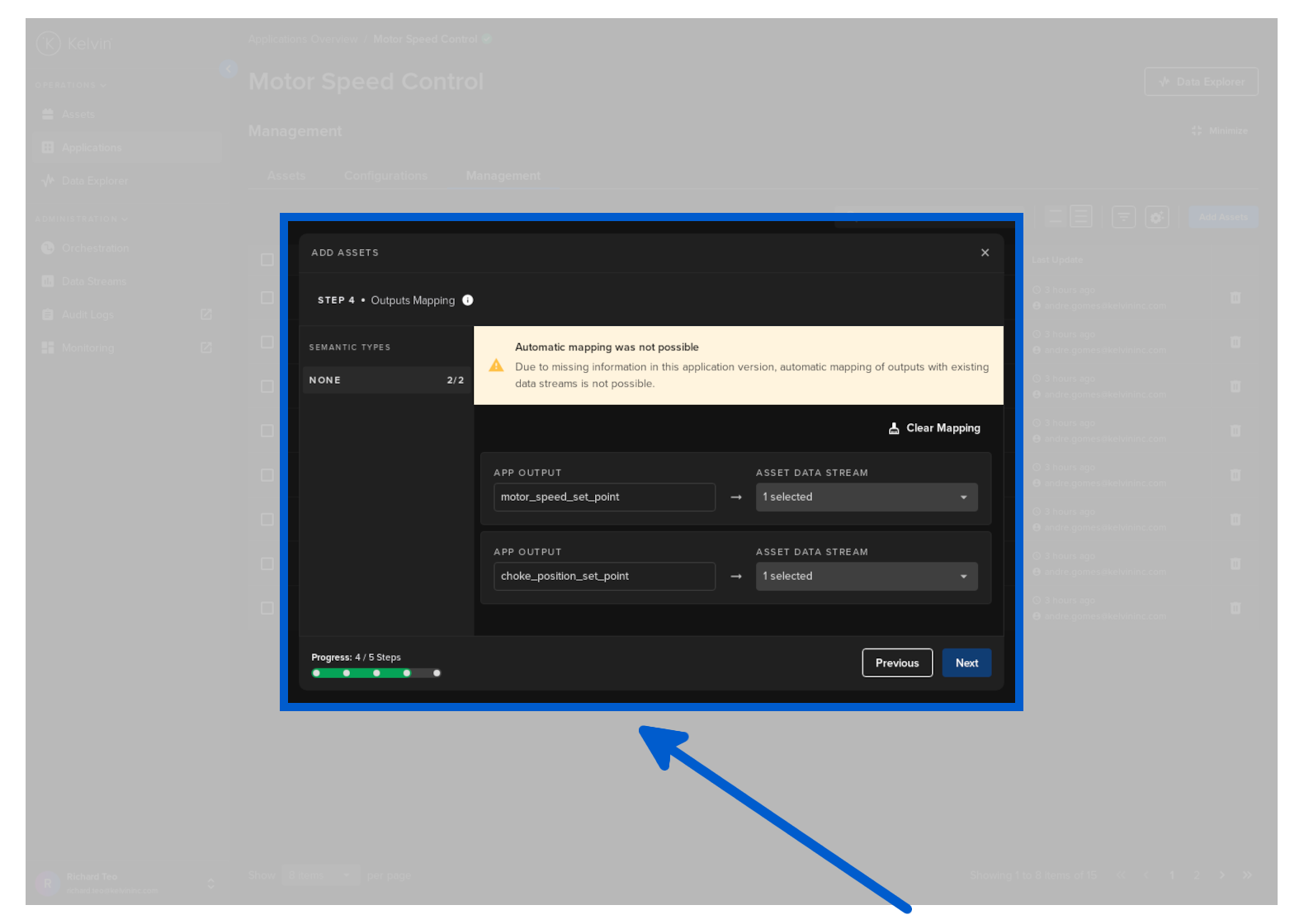
Now ensure that all the Application outputs are connected to the right Data Streams.
The Data Streams were checked back in step 1.
Kelvin UI will attempt to automatically match and connect the right Data Stream to the Application output. This helps speed up this matching step and avoid errors in the connections.
While Kelvin UI generally ensures accurate Data Stream to Application matching, users are encouraged to verify the connections for correctness.
Step 5 - Summary and Submit
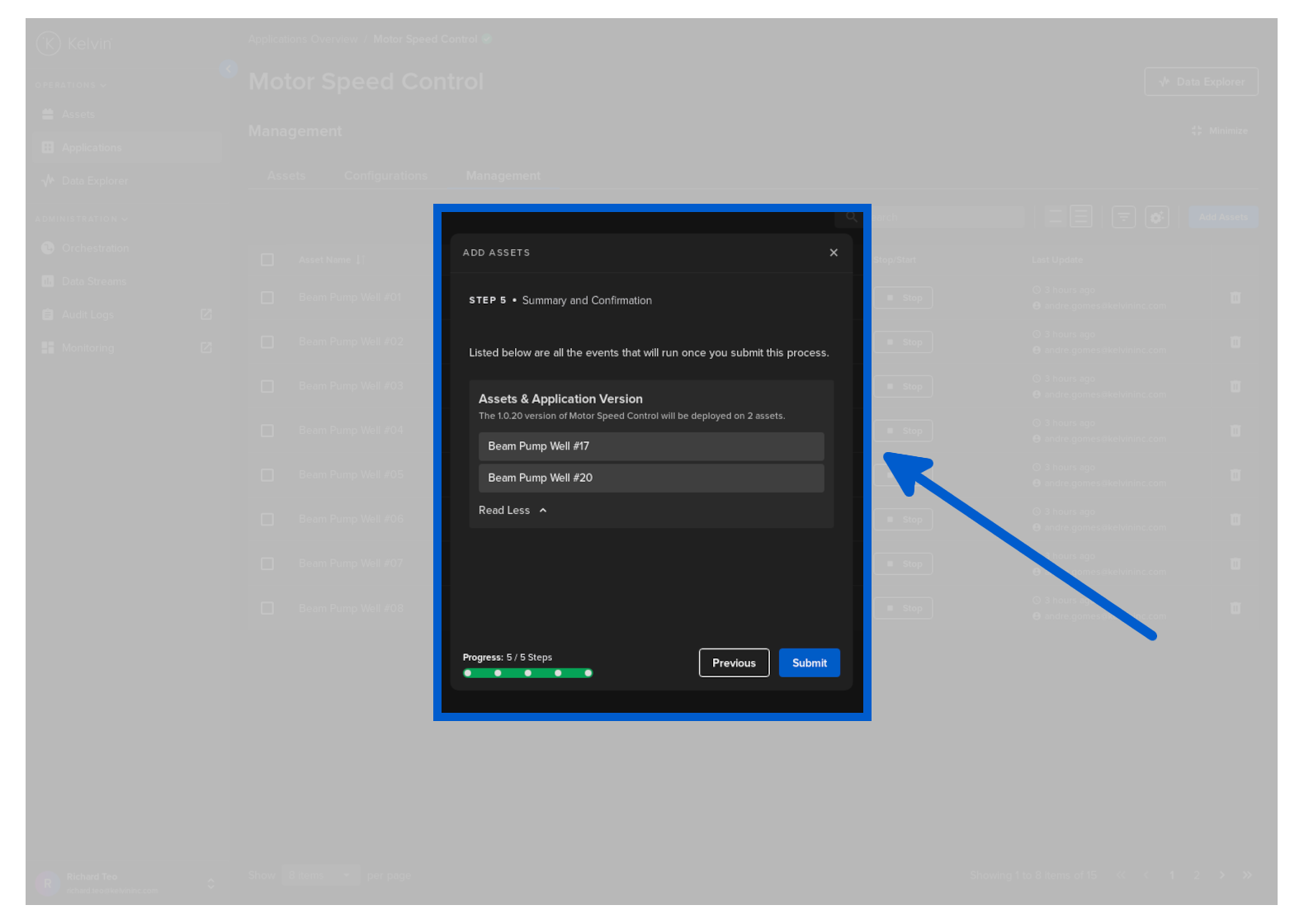
Finally you will have a summary of all the information you selected.
Check the information is correct, then click on Submit to add the Asset to the Application.
Click on the Read More to see a list of the Assets you have selected.
Congratulations ! You have now added new Assets to the Application
Check Status
You can now check the status of the Asset in the Management Tab.
It will show Updating while the program is deployed with the connections to the new Asset. When it is all successful completed, then you should see it turn to Running.
If for any reason your edge cluster is offline, then Kelvin will wait and deploy the Asset when it next comes back online.
You will see the status stay on Updating while waiting for the edge cluster to come back online. No further action is required by you.